Examiners: Action ITAMs
Documenting and providing evidence that an organization complies with a standard is invariably an iterative process that requires some back-and-forth communication with the organization. Action ITAMs represent a key tool in facilitating coordination and communication about a form, the actions that need to be taken, or any questions you or the organization may have.
This section will explore the Action ITAM feature and how it clarifies requirements and advances your organization's compliance.
What Are Action ITAMs?
An Action ITAM represents a small, trackable work item or question related to a single field in a form. As you work with an organization, there will naturally be items about which they will have questions or need clarification. Likewise, as you review their entries in a form, items need to be adjusted or explained.
Action ITAMs are tools that facilitate that communication while keeping track of what still needs to be addressed and what has been completed.
Initiating Action ITAMs
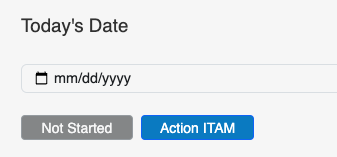
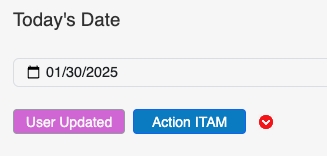
Action ITAMs are always related to a particular field in a form and are initiated from the form while viewing that field. Below each field is a blue Action ITAM button. Once active Action ITAMs exist on a form field, a small red arrow will appear that provides a quick, accordion-style view of those items:
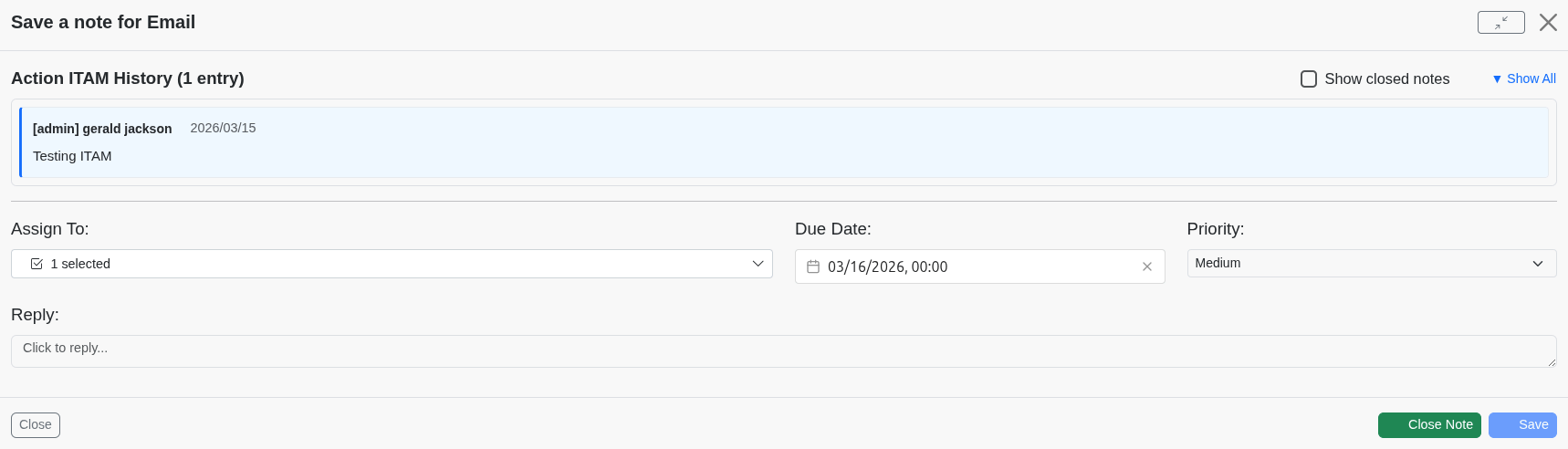
Clicking the Action ITAM icon opens the Action ITAM screen. The form will allow you to assign the Action ITAM to the appropriate party, enter the action or question desired, and assign a due date:
This form will also display any relevant history for this action.
Clicking the Save Note button saves the details and creates the Action ITAM. Clicking on Close will close the form without saving your changes.
Once you create an Action ITAM, you can open and edit it by clicking the Action ITAM Button.
Viewing Action ITAMs
There are a couple of ways to view an Action ITAM assigned to you. The quickest is through the Dashboard: on the right-hand side of the Dashboard, you will find the Action ITAMs list:
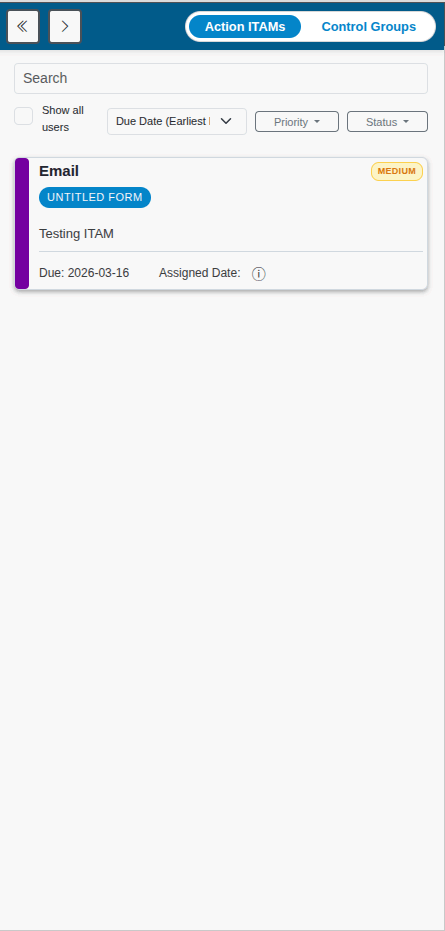
This panel will show all Action ITAMS assigned to you, including the name of the form associated with it, the title of the related field, the date it was transferred, and the date it is due. The Form Name field is also a link directly to the field in the form.
Clicking the form's name will take you to the form and the field.
The final way to view Action ITAMs is by running the Action ITAM Report, if available. The appropriate description is in the guide's Report Types section if you want more information.
Responding to Action ITAMs
If you have an Action ITAM assigned to you, responding is simple. The first step is to navigate to the form and field associated with the Action ITAM, as described above.
Once you've provided the information or taken the steps the task requires, you can click the Close Note Button. This will log the completion of the Action ITAM, which will remove it from your queue (and remove the red notification arrow from the form field).
Your Roadmap to Risk Reduction is just 2 clicks away with Continuum GRC!
Call 1-888-896-6207 to get your roadmap to risk reduction underway.