The Forms Manager
Forms are critical tools for capturing and validating an organization’s compliance data. Many organizations and agencies have used spreadsheets and free-standing documents to capture compliance information. These lacked an excellent way to aggregate and report on data and were difficult to keep organized.
The IT Audit Machine’s Forms Manager is where those forms are kept within the system, and it has the functionality and flexibility needed to craft powerful forms for gathering and interacting with the data your organization needs.
In this section of the guide, we will start with a high-level overview of the Form Manager and the form management capabilities directly accessible from it. Subsequent pages will go into further detail on creating forms with the Form Builder, some of the Advanced Form Management features, and finally, how to interact with the data entries captured via the Entry Manager.
Form Manager View
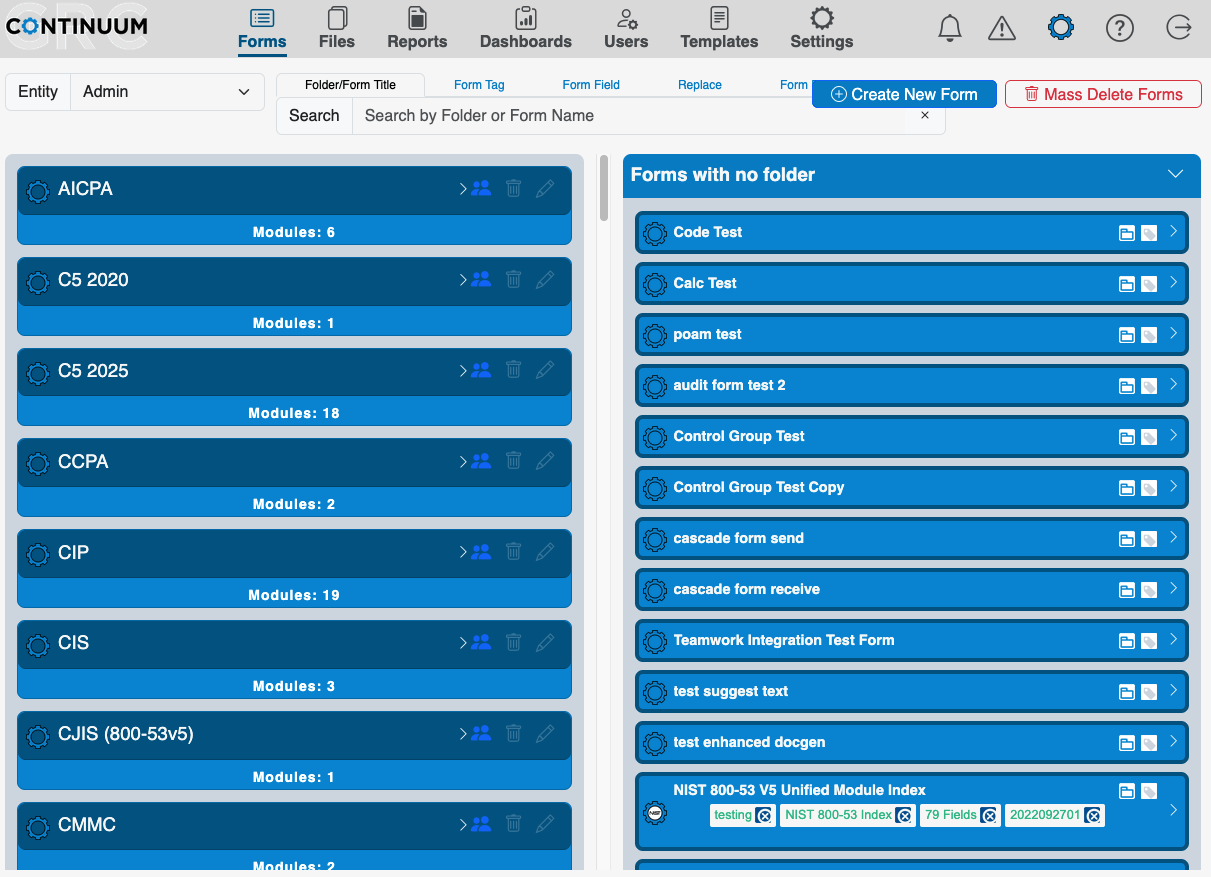
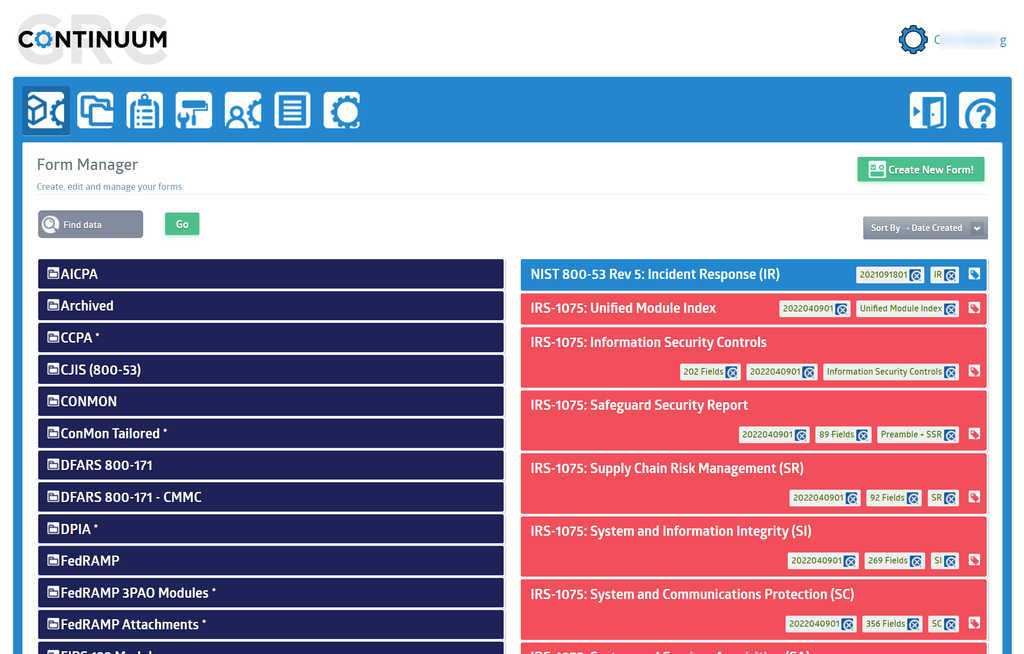
When you first navigate to the Forms Manager by selecting the icon on the far left of the main menu bar, you will be presented with a high-level view of the available folders and forms. Folders are in dark blue on the left of the screen, allowing forms to be organized together in whatever makes sense for your organization.
Typically, forms are organized by the standard they support. However, a folder is simply a container for forms and can be organized in different ways to support your organization's needs. These folders use an accordion-style interface, meaning they can be expanded and contracted by clicking on the dark blue bar representing the folder.
By default, on the right, it displays any available forms that have not yet been assigned to a folder. The right side also displays the results when searching for a form. Whether a form is in a folder or on its own, it acts as an accordion interface. Clicking the bar representing a form will display or hide the icons used to access the powerful array of management and editing options available for that form. Unlike folders, forms may be different colors depending on their status in the system.
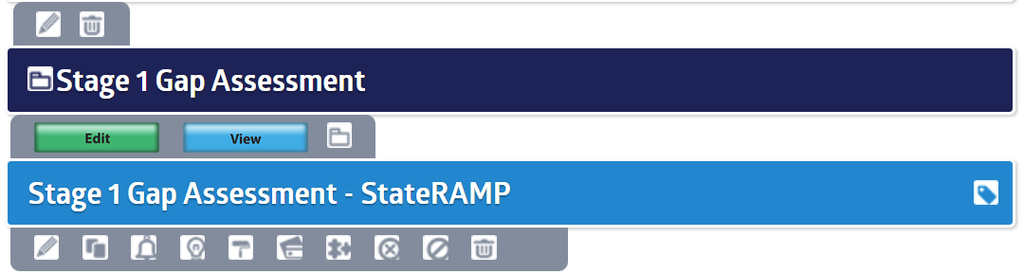
See the images below to view how the folders and forms expand when interacted with.
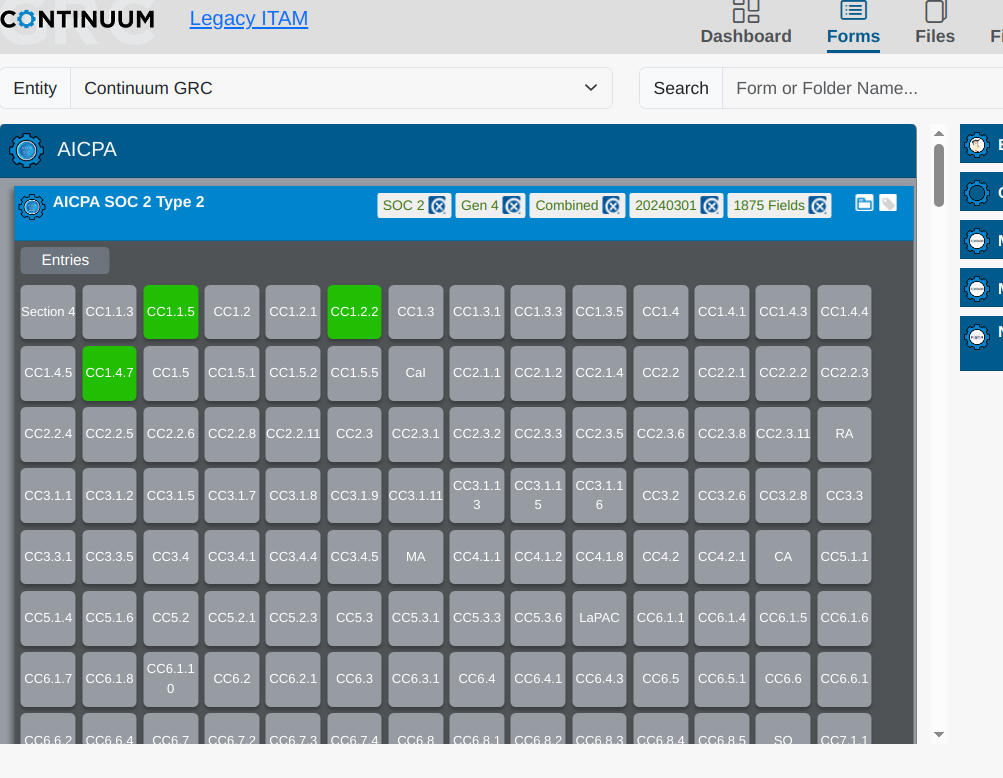
Clicking a name expands that folder to view the available forms within it, along with icons to edit and delete them. Also, if there are entries marked as completed, you will see an overview of the controls and which ones have been addressed (highlighted in green).
 Clicking a Form, whether in a folder or among the unorganized files on the right, displays the options to manage or edit the Form.
For some forms, a set of tiles representing any control groups in the form will also be displayed. We will cover these later.
As discussed, from this initial view, you can find and work with a specific form, create a new form, or organize the forms into Folders. Many options for working with a form can also be selected directly from the Form Manager page, though some are only available when editing or building a form. Let us explore most of the capabilities accessed directly from the main Form Manager page: finding a specific form, standard form management options, and working with folders.
Searching and Filtering the Forms List
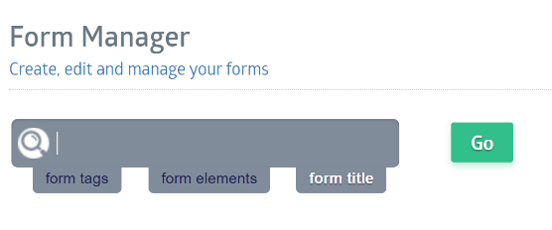
The search box is located in the center of the dashboard, directly above the form lists. This search function includes four options:

The search box becomes active when you select or click it.You can type in your search query and hit Enter to run a search.
Above the search bar, you'll see 5 search options:
- Folder/Form Title: This performs a search across form and form folder titles.
- Form Tag: This performs a search across all Form Tags assigned to forms.
- Form Field: This search allows you to locate specific fields by name across different forms.
- Replace: Performs a standard "Find and Replace" function for specific text data. You will recieve a confirmation dialog confirming the change before it commits.
- Form Entry Data: This allows you to locate specific data that's been entered into any form field. You can refine your search by Matching Any Words, Exact Matches, or using Regex expressions.
Note: When searching, the Folder/Form Title is the default option.
All searches are case-insensitive and allow partial-word matches.
Standard Form Management
The ITAM Form Manager features several tools for working with and managing a form. This section will cover many of those. For specifics on creating or editing the questions on a form, see the Form Builder.
Note: Unless otherwise specified, most form management icons are toggled between being displayed and hidden when you click on a form's name in the Form Manager.
Tagging Forms
If you manage many forms across one or more organizations, you will find the "Tag" feature of the ITAM Forms Manager handy. Tagging forms allow you to dynamically create categories and groups of forms based on the tag values assigned to them. Combined with the powerful form search capability, it will enable you to quickly find all forms you have tagged with a particular value, creating a loose association of forms that are easy to find when needed.
To create a "Tag" form, click the tag icon on the right side of the form list entry.
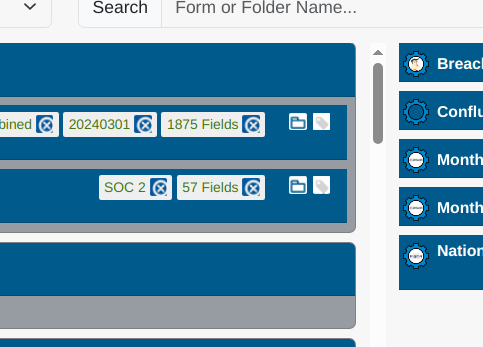
This will launch the Enter a Tag Name pop-up form.
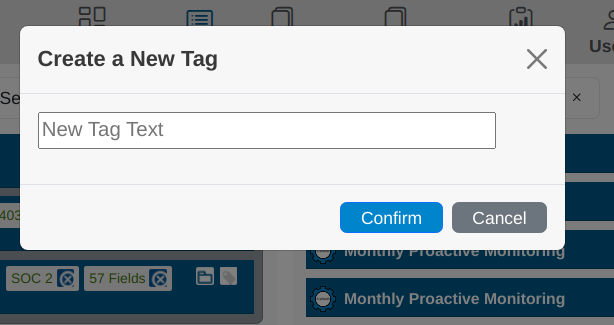


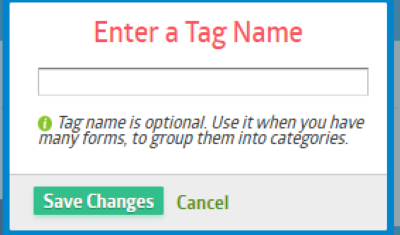
To assign multiple "Tags" at once, input all the tag names and separate them with commas.
A Tag may be deleted by clicking the blue X icon next to the tag name on the form.
Enable or Disable a Form
While developing your forms, it is standard practice to leave them disabled to prevent users from accidentally interacting with a form in progress.
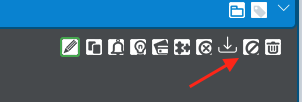
It may occasionally be necessary to close or disable a form temporarily and not accept any new entries. Fortunately, this can be easily accomplished using the Disable icon. Select the form to be disabled, then click the Disable button at the bottom right of the form entry.
Click the blue Confirm button to confirm.
Note that when a form is disabled, the form name appears struck through with a single line, and the Enable button is displayed.
Duplicating a Form
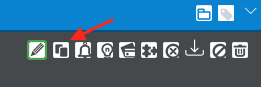
Duplicating a form creates an exact copy of the form, including all settings (notifications, payment, theme). However, it doesn’t copy the entries from the original form. The new copy will have no entries. If you need to create many forms with similar fields, it’s best to create a master form containing all the standard fields. Every time you need to make a similar form, you can duplicate your master form and then modify it further. This way, you won’t need to add all the fields from scratch each time.

Deleting a Form
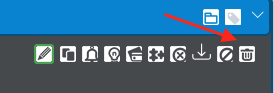
Occasionally, a form may need to be deleted. To do so, click the Delete icon under the form.

Deleting a form will also delete all associated data entries (including file uploads). There is no trash/recycle bin in your admin panel to restore your forms quickly, so use caution.
Cancelling a Form
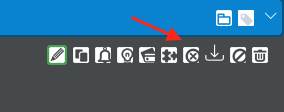
Depending on how your organization is set up in ITAM, you may or may not have other entities subscribed to your forms. Once an entity is subscribed to a form, there may come a time when it is necessary to cancel its subscription. This is done through the Cancellation Manager, accessed via the Cancel Membership icon under the form. If an entity previously subscribes to a form requiring payment, this subscription will persist until you cancel your membership.

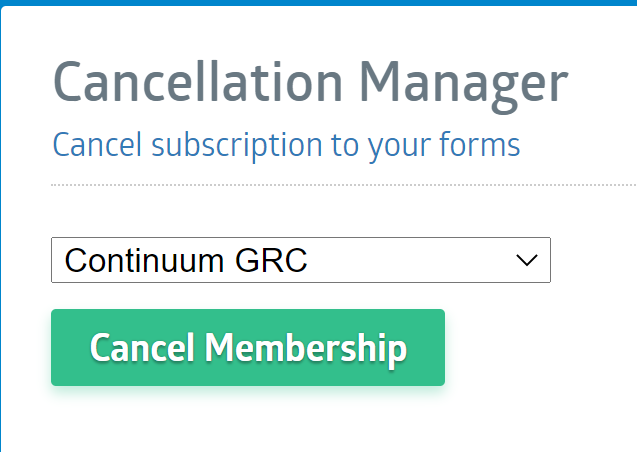
Clicking on the Cancel Icon displays the Cancellation Manager, which allows an Administrative User to select the organization/entity they wish to remove from the form and cancel their membership.
Setting Payment Options for a Form
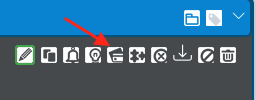
If your organization has clients who access your forms and require payment to use them, the Payment Settings interface lets you configure those options. This interface is accessed via the Payment Settings Icon below the form.

The Payment Settings screen lets you configure the Merchant Settings, Payment Options, and the Price.
Managing Form Entries
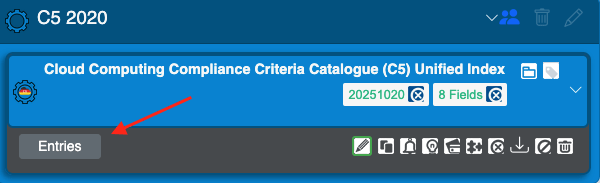
Each form has a series of Entries, or logical instances of that form. This capability lets you manage User data entered on a form. To see a list of entries, click the Entries button in that form's description. See the User Entry Management section of this Guide for more details.
Folder Creation
Folders are created by moving a form into a new folder. To do this, select the Folder icon above the form you want to move into the new folder.
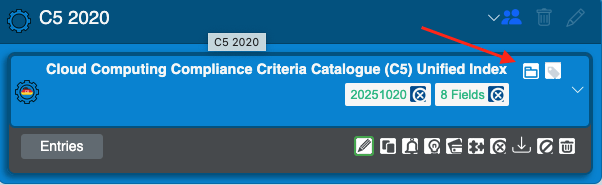
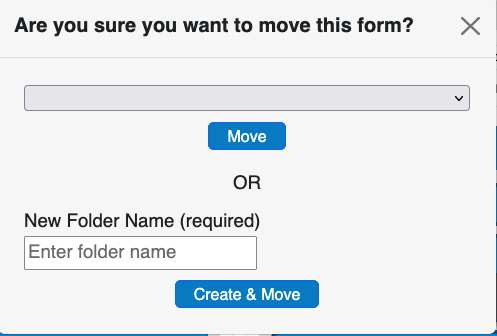
This will open the Move Form dialog, with options to move to an existing folder or create a new one. Enter the name of the folder you wish to make in the text box provided and click the Create & Move button.
Rename Folder
Folders are renamed using the Rename icon above a folder’s name when the folder is expanded.
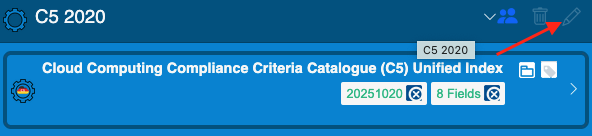
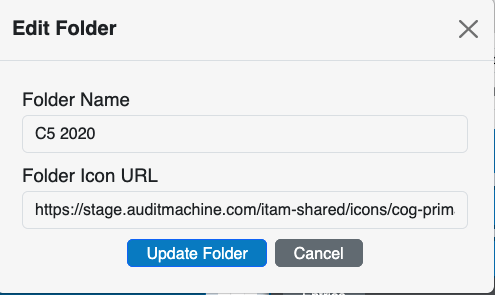
Simply edit the name displayed in the Rename Folder dialog and click the Update Folder button.
Delete Folder
When expanded, folders are deleted using the Delete icon above a folder’s name.
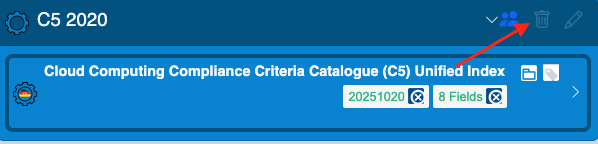
Clicking this icon displays the Delete Confirmation dialog.
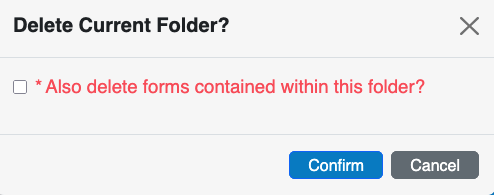
To complete the folder deletion, click on the green Confirm button.
Warning: Deleting a folder is a permanent action that cannot be undone. The forms in the folder will not be deleted, but moved out of the folder and displayed with the other unorganized forms.
Ready to build your Roadmap to Risk Reduction?
Call 1-888-896-6207
Call 1-888-896-6207
Start Your Free 14-Day Trial
FedRAMP Certified GRC Platform Featuring the World's First AI Auditor