Examiner: My Reports
Sometimes, in working with an organization’s data, it is easy to lose sight of the forest through the trees. At times, the ability to step back and view data from different perspectives can help focus efforts most effectively. Reports are a key tool for helping shape a large dataset into a meaningful picture. ITAM comes with several built-in reports to facilitate understanding the data collection and identifying meaningful actions to take based on the results.
In this section of the Examiner Guide, we’ll look at an overview of the functionality of the My Reports view.
My Reports Views
The My Reports view displays the reports made available by the Administrator for your entity. The initial view displays the currently accessible reports.
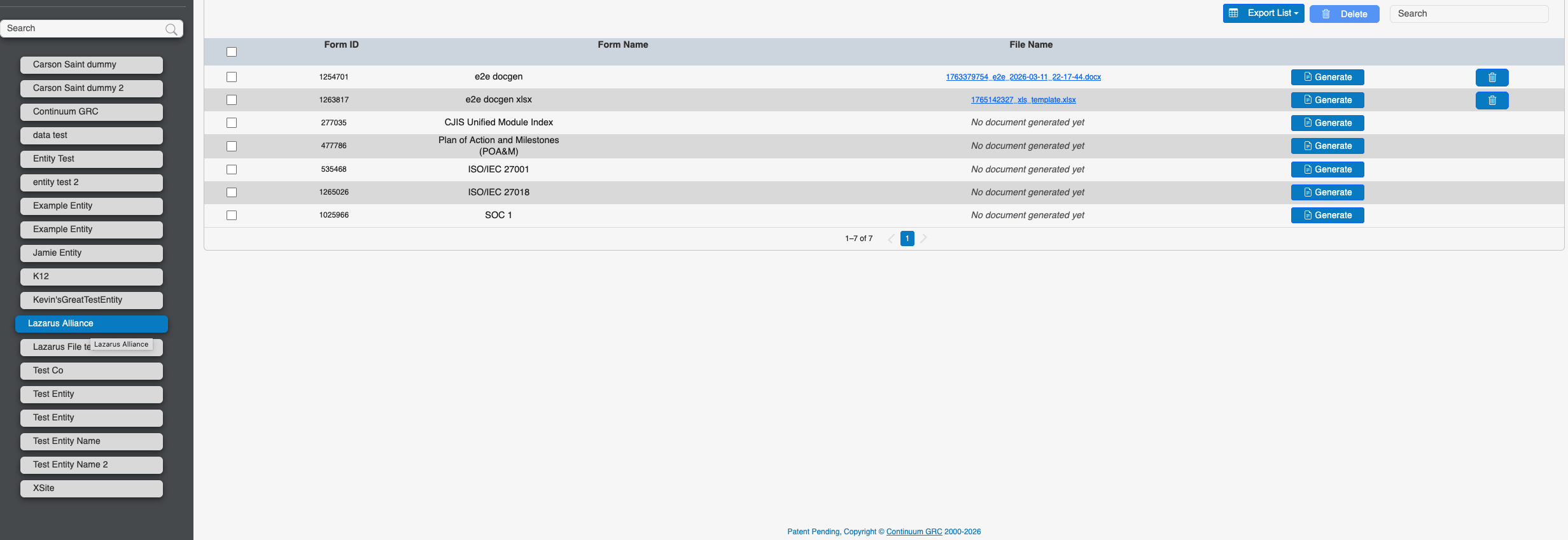
Each row of the Reports table represents reports that can be, and have been, generated from form data in your ITAM instance. Note that if a template is missing, the row will be grayed out, and you won't be able to generate a report.
Generating Reports
You can generate any report by clicking the Generate button on the report's row. Note that it might take a few minutes to generate the selected report. If you want to delete the report that you generated, you can click the Trash Can icon on that same row.
Once you've generated the report, you can view it by clicking the hyperlinked name in the File Name column.
Deleting Report Types
If you want to delete an entire row, click the selection box on the left-hand side of the row, then click the Delete button at the top of the dashboard.
Exporting Report Lists
If you want to export a list of all the reports listed in your dashboard, click the Export List dropdown and select either Excel Spreadsheet or Comma-Separated Value (CSV) as your file type.
Ready to build your Roadmap to Risk Reduction?
Call 1-888-896-6207
Call 1-888-896-6207
Start Your Free 14-Day Trial
FedRAMP Certified GRC Platform Featuring the World's First AI Auditor