The Continuum GRC A.ITAM CyberVisor
A.ITAM reduces time spent on rote documentation and data entry during compliance work. Using your documents and existing evidence, it can autofill narrative fields with text that demonstrates compliance. You can also edit and refine that text using prompts before adding it to a field.
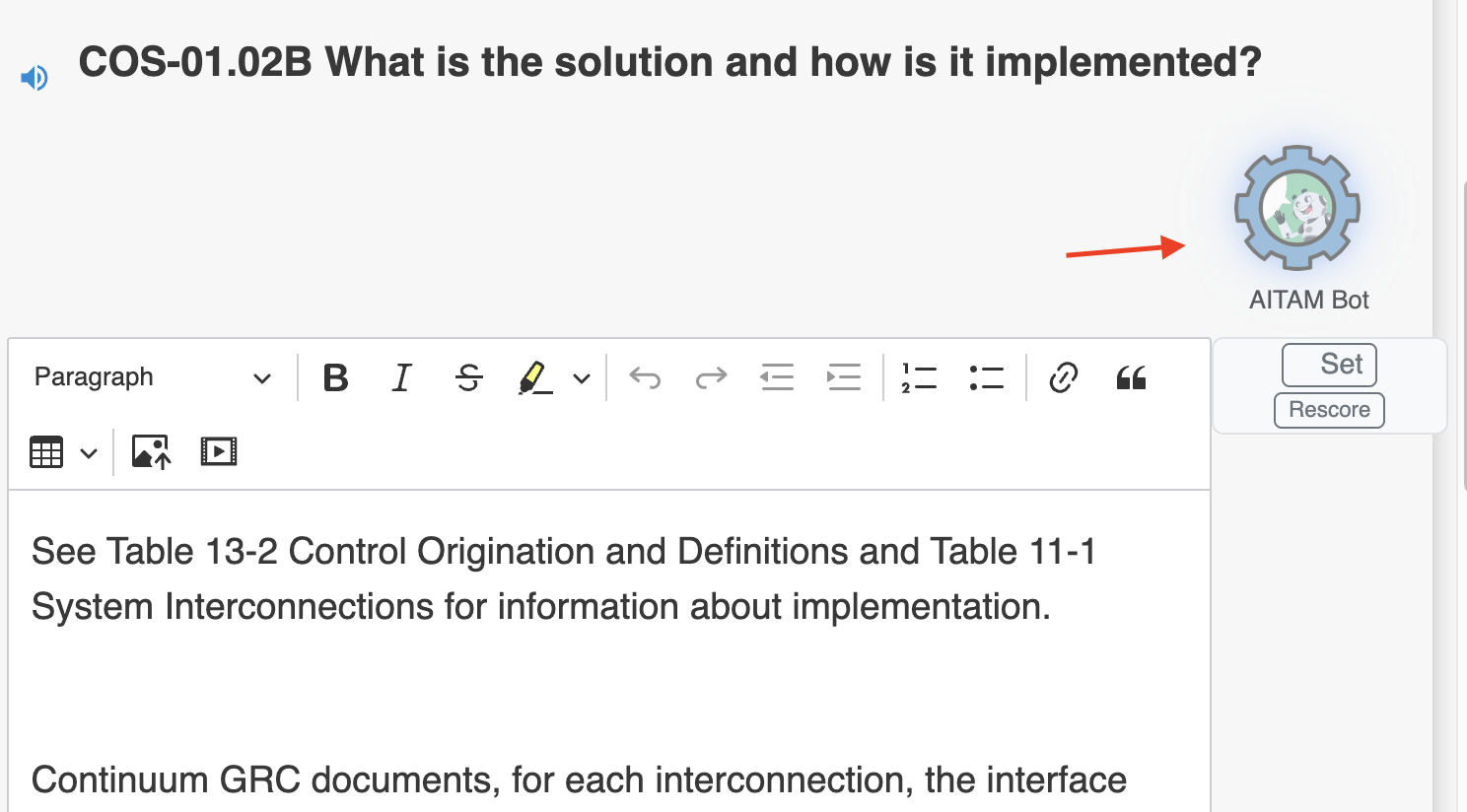
A.ITAM is available on any form field that supports it, including text and file upload fields. These fields are marked with the AITAM symbol. Clicking this symbol gives you access to the A.ITAM bot, CyberVisor.
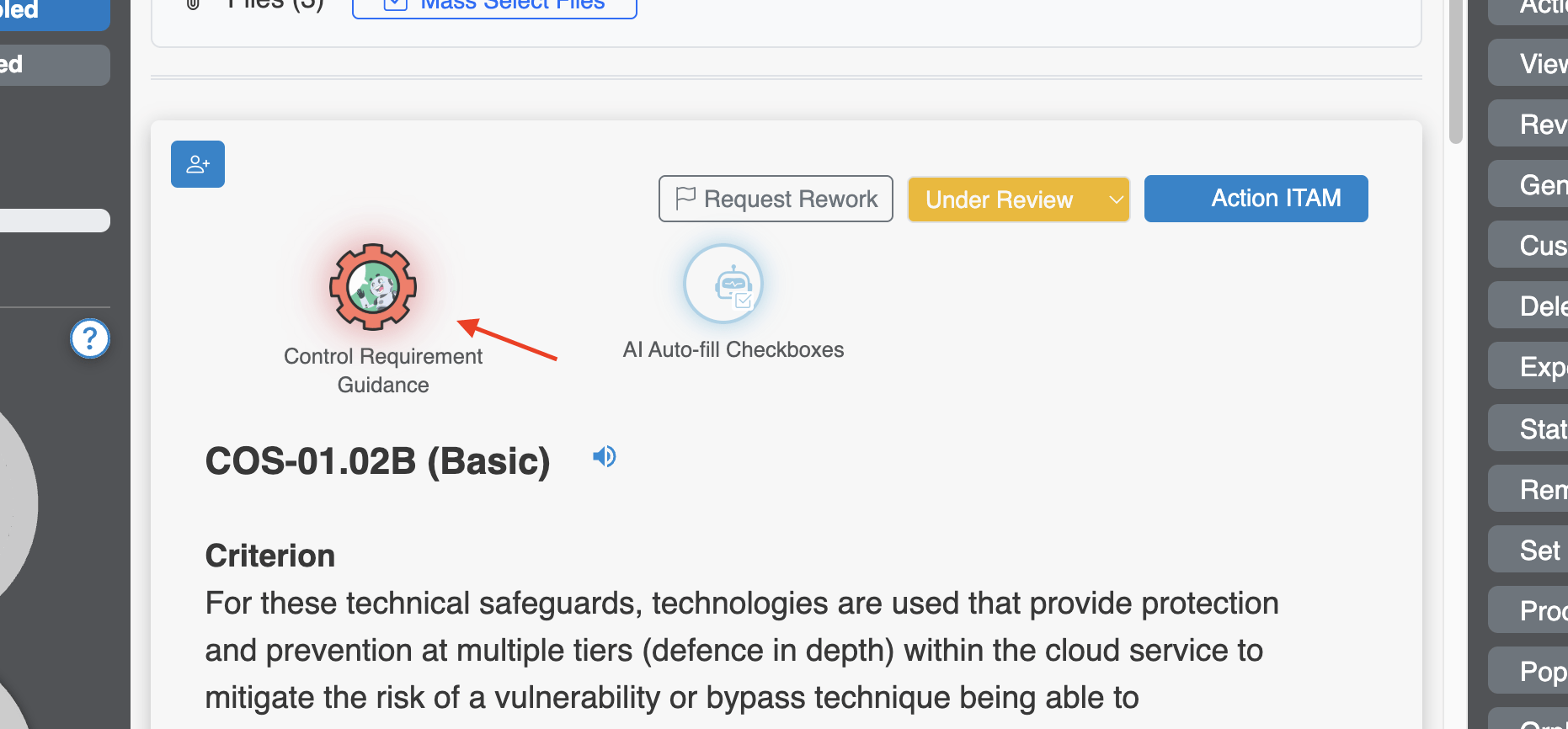
Review the Control Requirement Guidance
At the top of the form section, click the Control Requirement Guidance button. Review the control breakdown in that section and what the form requires. If you need clarification, send questions directly to the AI bot in the chat window. This bot will use information in the Entity Variables form to determine the form and how to auto-fill data.
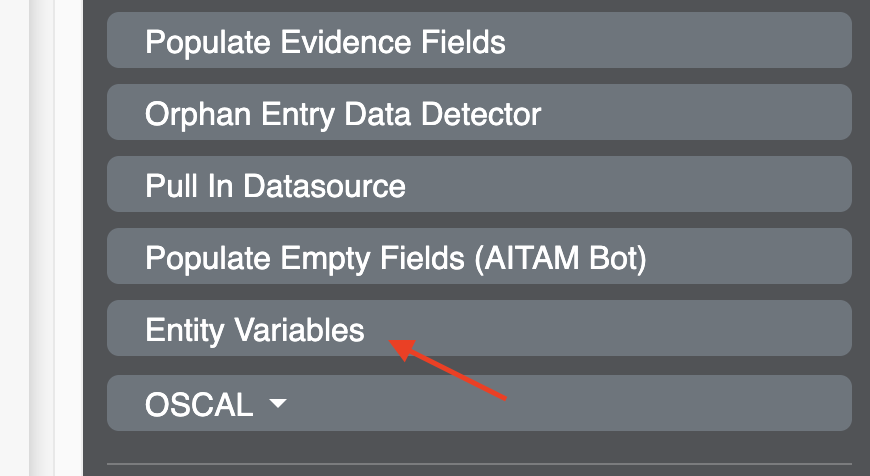
Set Up Entity Variables
On the right-hand side of the screen, click Entity Variables.
In the pop-up form, enter variables such as:
- Company name
- Address
- Contact information
- Assessor information
- Other relevant organizational details
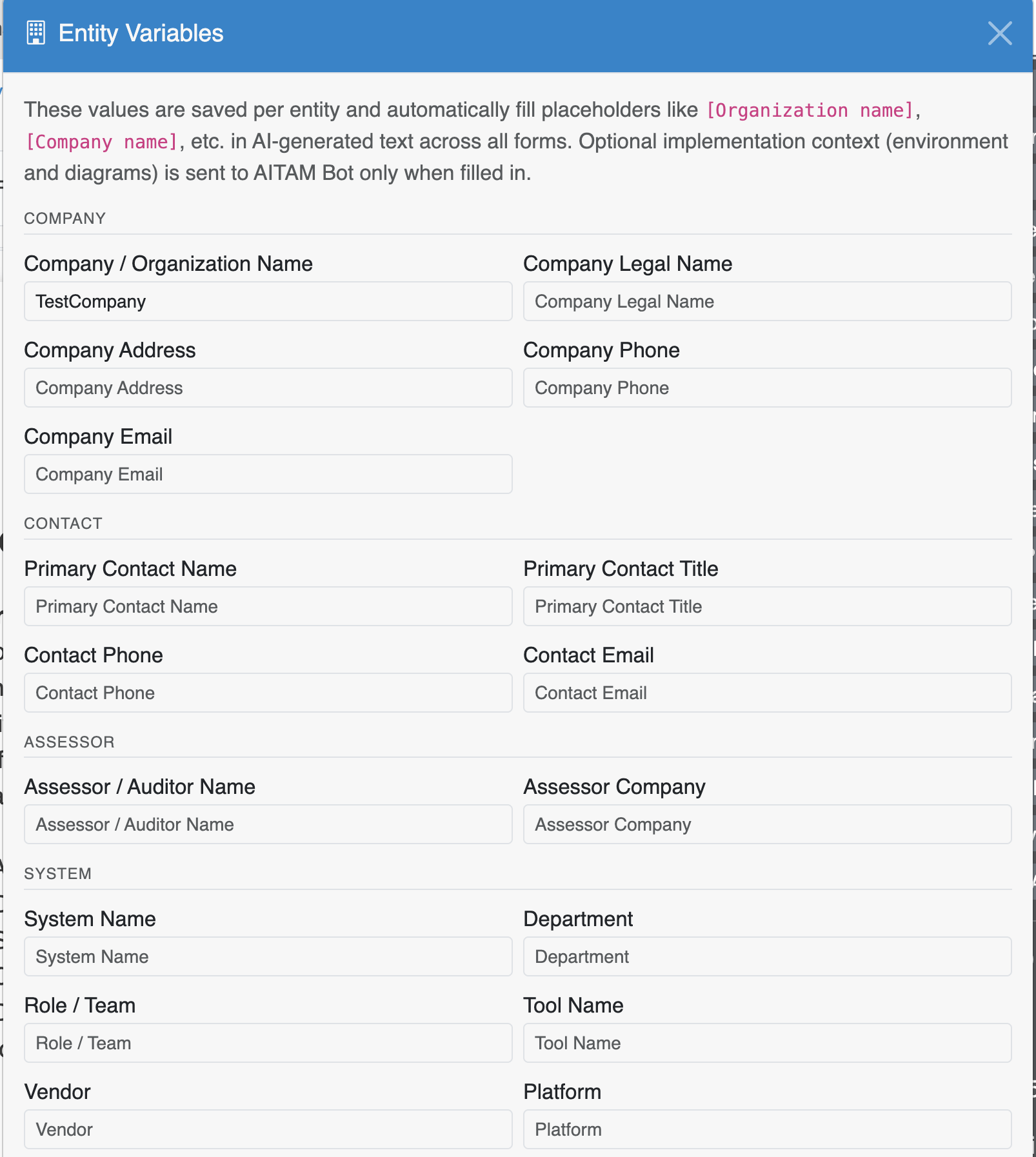
Save these entries. A.ITAM will use this information to fill in text areas with organization-specific data throughout the form.
Use AI Auto-Fill Checkboxes
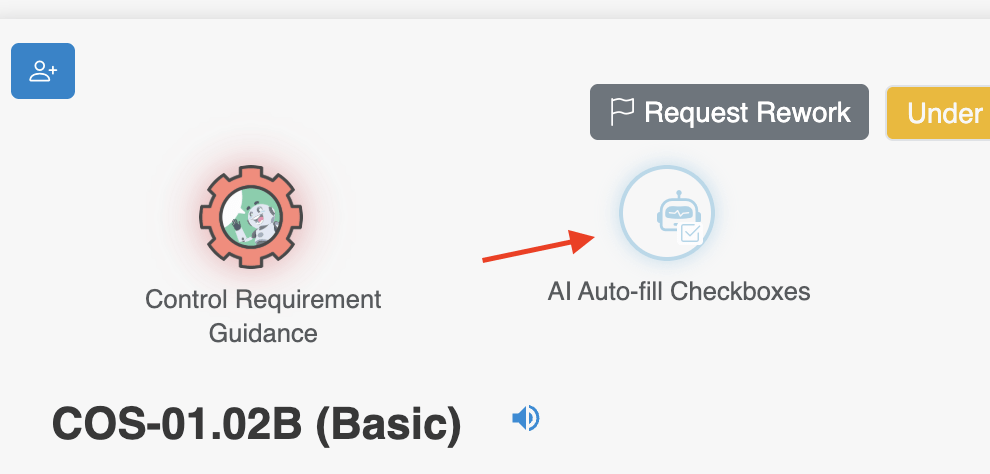
Locate the AI Auto-Fill Checkboxes button at the top of the form, adjacent to the Control Requirement Guidance button. Click it to automatically set any checkboxes in the form based on the information already provided in the text areas.
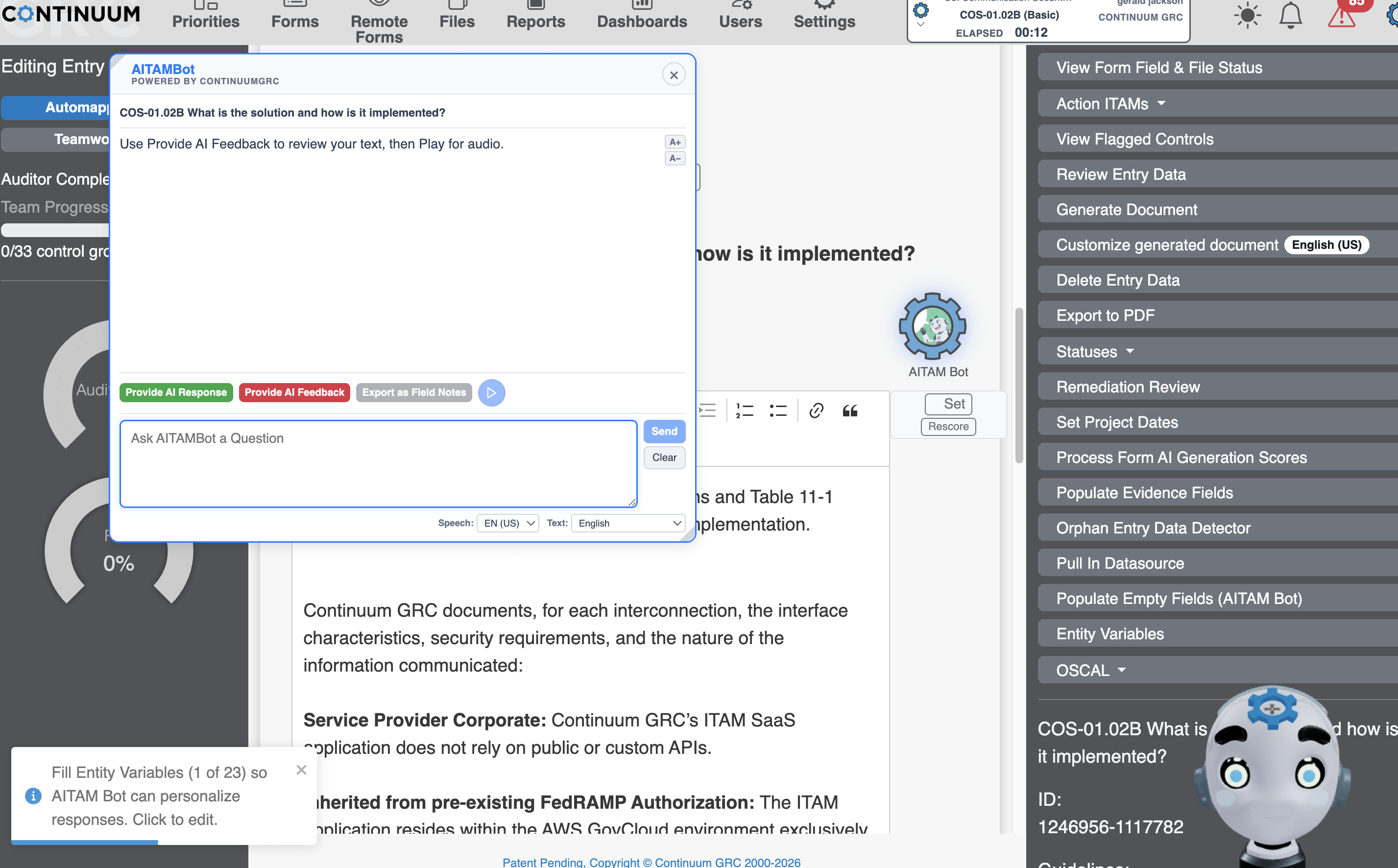
Open CyberVisor on a Form Field
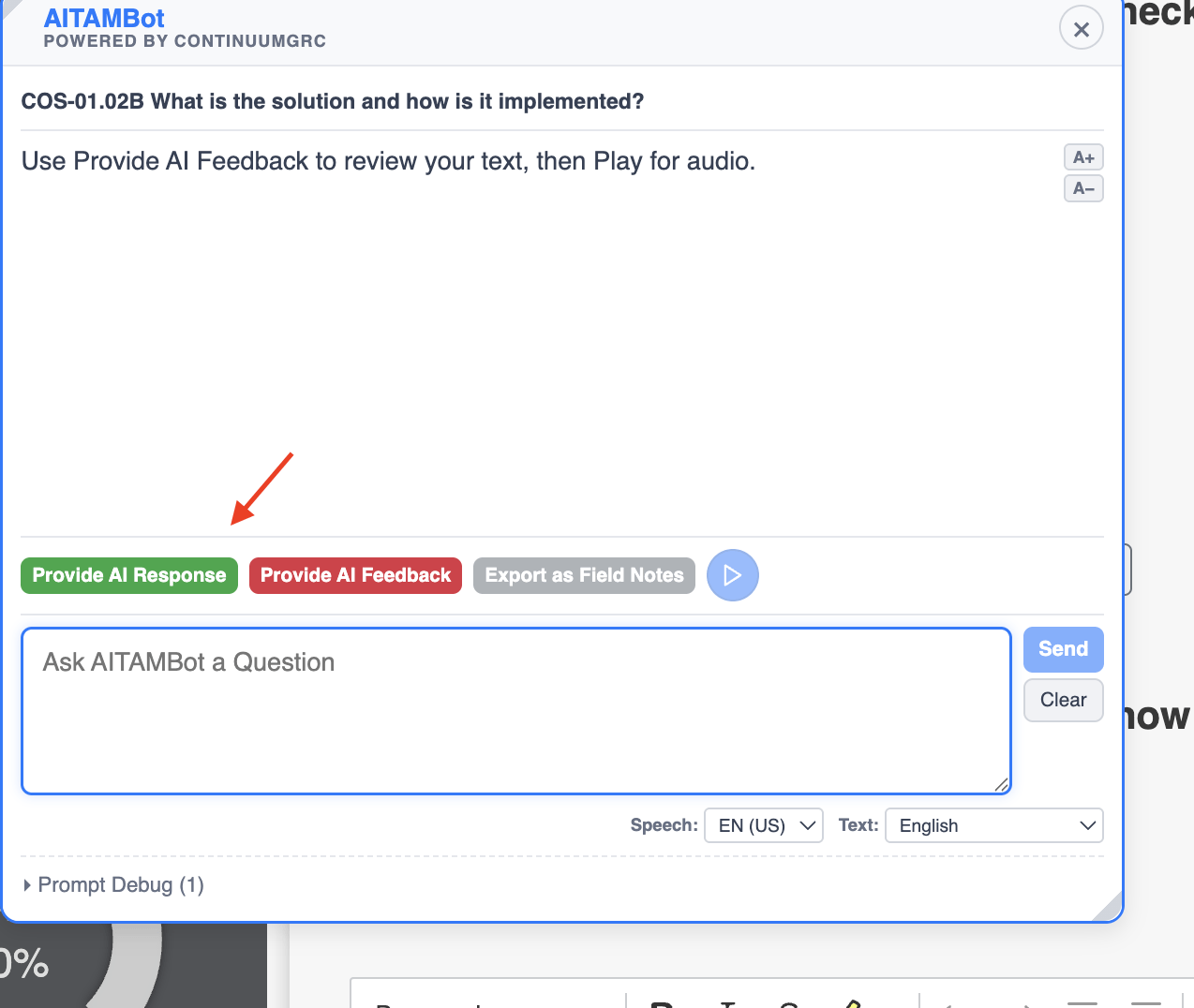
Scroll to a control that uses text for evidentiary proof. Click the A.ITAM Bot button next to the field. This opens CyberVisor, where you have the following options.
Get AI Feedback on the Field
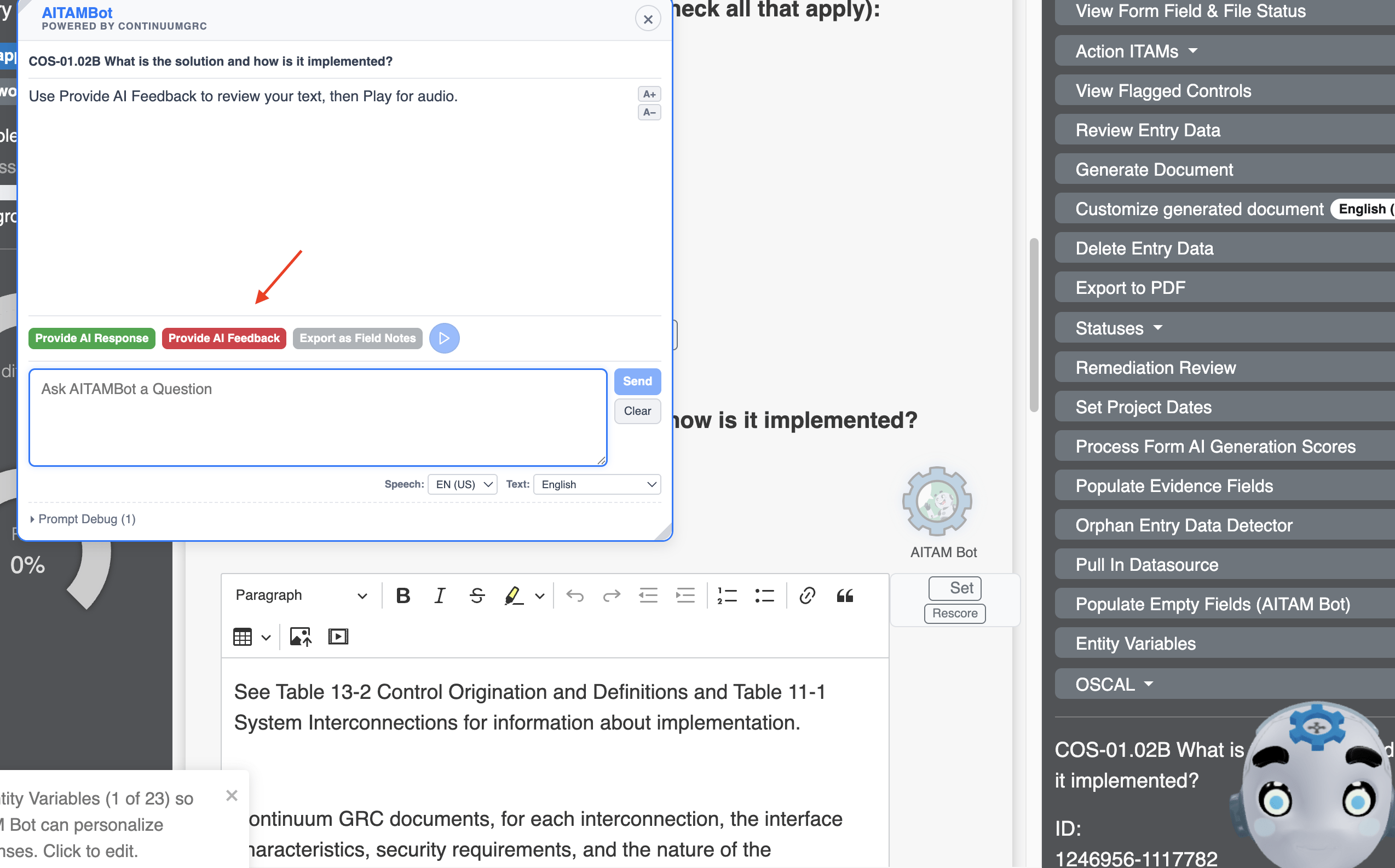
Click Provide AI Feedback. Review the breakdown of what is expected for this field, including a description of what’s needed and how best to present it to the auditor.
Generate an AI Response
Click Provide AI Response. CyberVisor auto-generates a response for the field based on your Entity Variables and your answers to previous fields in the form.
Review and Refine the Response
Click Provide AI Feedback again to get an assessment of the text currently in the field. Optionally, have A.ITAM read its responses aloud. You can select from one of dozens of supported languages.
At any time, you can also export the conversation to a field note related to this form field by clicking the Export as Field Notes button.
Review the Risk Exposure Ranking
Once the content is in place, A.ITAM generates an AI-powered risk exposure ranking for that control. This ranking is based on the information provided and its level of specificity.