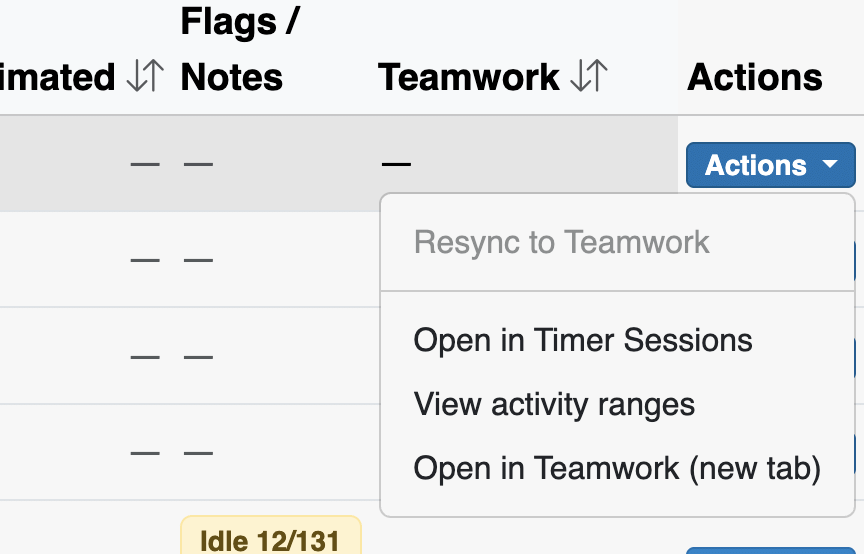
In the administrator panel, in the same section you used for Estimated Time Rules, you’ll find the Timer Sessions and Timer Administration tabs.
Time Sessions
The Time Sessions Dashboard, as the name suggests, provides a top-down view of the time sessions for all users in the system. Timer sessions start automatically when users work in a particular form or dashboard of the eye-tam system. This dashboard simply tracks those sessions as they work within specific forms.
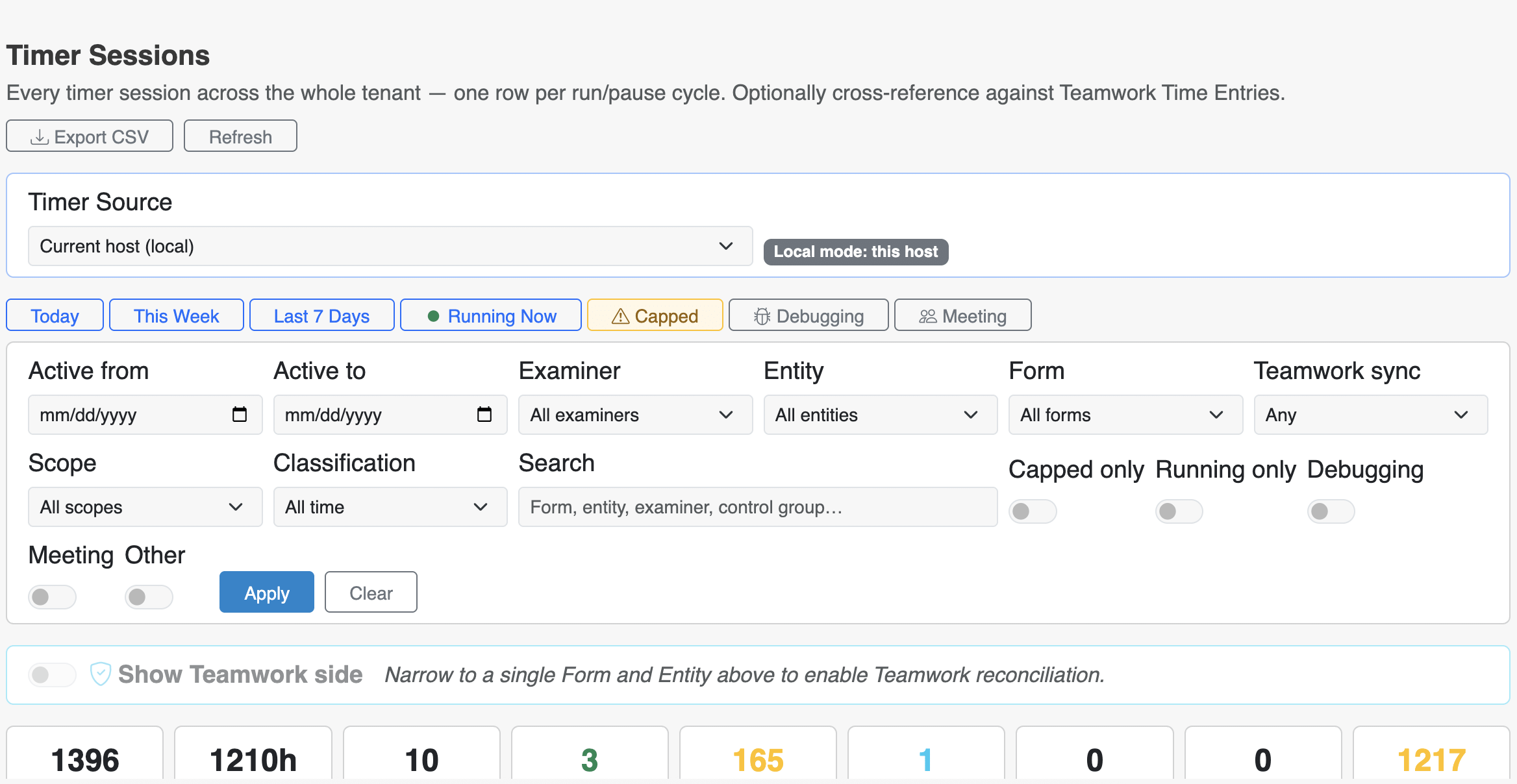
- At the top of the screen, you’ll find a dropdown that lets you select the Timer Source, or the vhost you want to view.
- Next is a series of Search and Advanced Searching features. The quick search buttons provide quick access to timer information for timers that have run today, this week, in the last 7 days, or are currently running.
- Underneath that is a more comprehensive Advanced Search that lets you pull timer information for timers active within a certain period of time, tied to an Examiner, Entity, Form, or Control Group, and any timer classified as either “work” or “idle.”
- Finally, the dashboard shows the total number of sessions and hours logged in the system, how many examiners have logged in, how many are currently running, and how many have a capped time allotment.

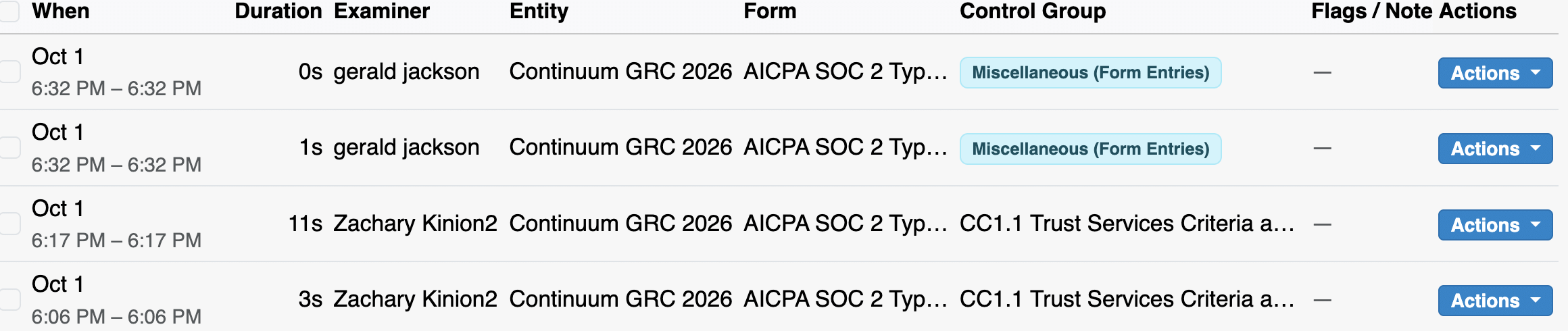
Underneath that, you’ll find the timer results, a table of timer instances tied to specific users. Each row shows the date and time of that timer instance, the duration, the Examiner who timed it, the Entity they logged it under, and the form they logged it while working.
Additionally, the Actions button will allow you to either:
- Mark a timed work instance as either billable or non-billable,
- Sync or Resync the time to Teamwork for task management,
- Edit information within that time session, or
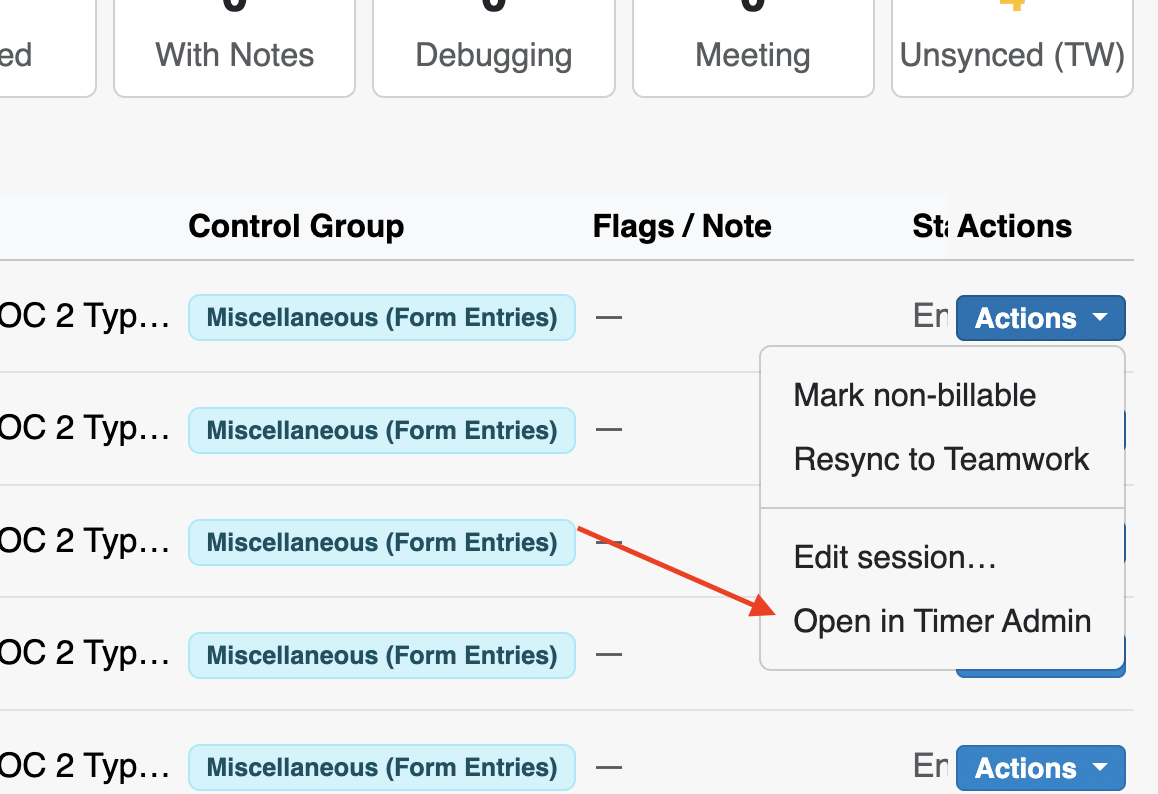
- Open the specific timer in the Timer Administration dashboard.
Timer Administration
The Timer Administration dashboard is similar to the Timer Sessions dashboard, with a few extended features that help administrators directly modify or track timed work across the instance. You can open any entry in the Timer Sessions Dashboard by clicking on Actions, then selecting Open in Timer Admin:
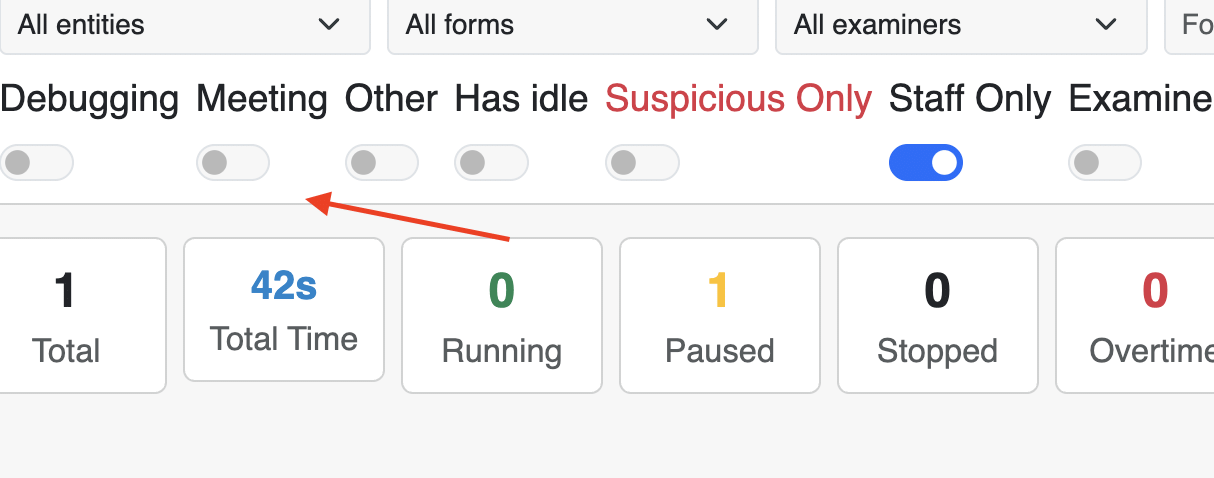
You’ll notice at the top of the screen that there are more quickview statuses available, including:

- Paused and stopped work timers,
- Timers that have gone over budgeted time,
- “Suspicious” timers (see our lesson on Time Rules), and
- Unreconciled and unreviewed timer sessions.
You can also toggle selector switches at the top of this screen to filter in or out specific designations, such as user type, timer type, or whether a timer is suspicious.
The Action button also gives you a couple of additional options, like viewing the activity ranges in a time log and, if supported, opening the session directly in Teamwork.