Administrator Account Settings
Every user on the ITAM platform, from a portal user up to an administrator, has a profile containing information about them and their activity.
To view and edit your profile, click the gear icon in the upper-right corner of the screen, then click My Profile. The profile dashboard holds several sections:
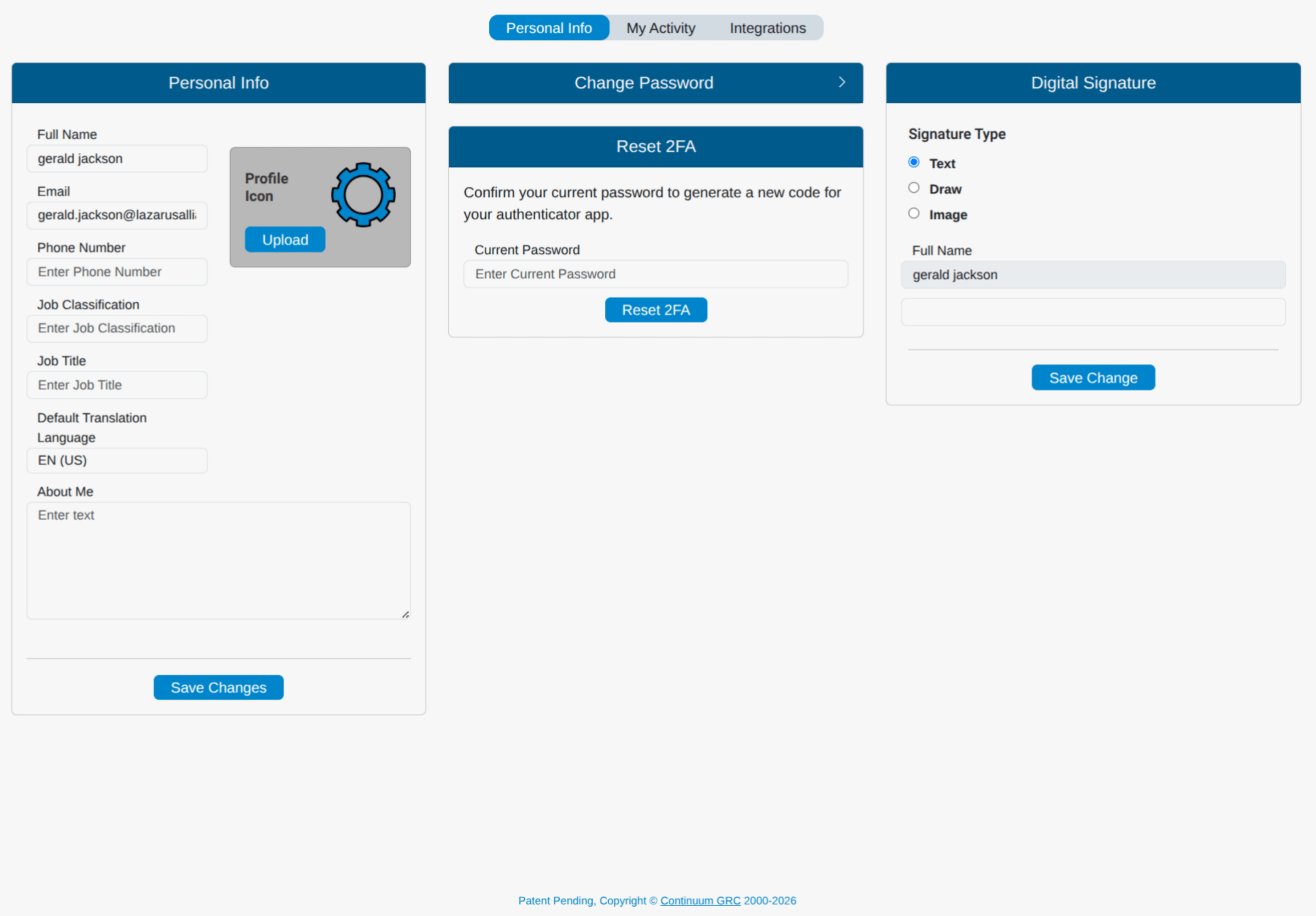
| Personal info | Update your name, email address, phone number, job classification, job title, default language, and account description. You can also upload an icon or headshot and switch the theme between light and dark. |
| Change password | Enter your current password, enter a new password, confirm it by re-entering it, and click Save Changes. |
| Reset multi-factor authentication | Enter your current password and click Reset 2FA. Scan the QR code in your authenticator app — a list of acceptable authenticators appears beneath the code, then enter the code from the app into the “Code from Authenticator App” box and click Complete 2FA. |
| Digital signature | Digital signatures are part of some compliance requirements, letting you or an examiner verify audits and reports. You can specify one of three signature types: a plain text signature, a signature drawn with a mouse or stylus, or an uploaded image of your signature. |
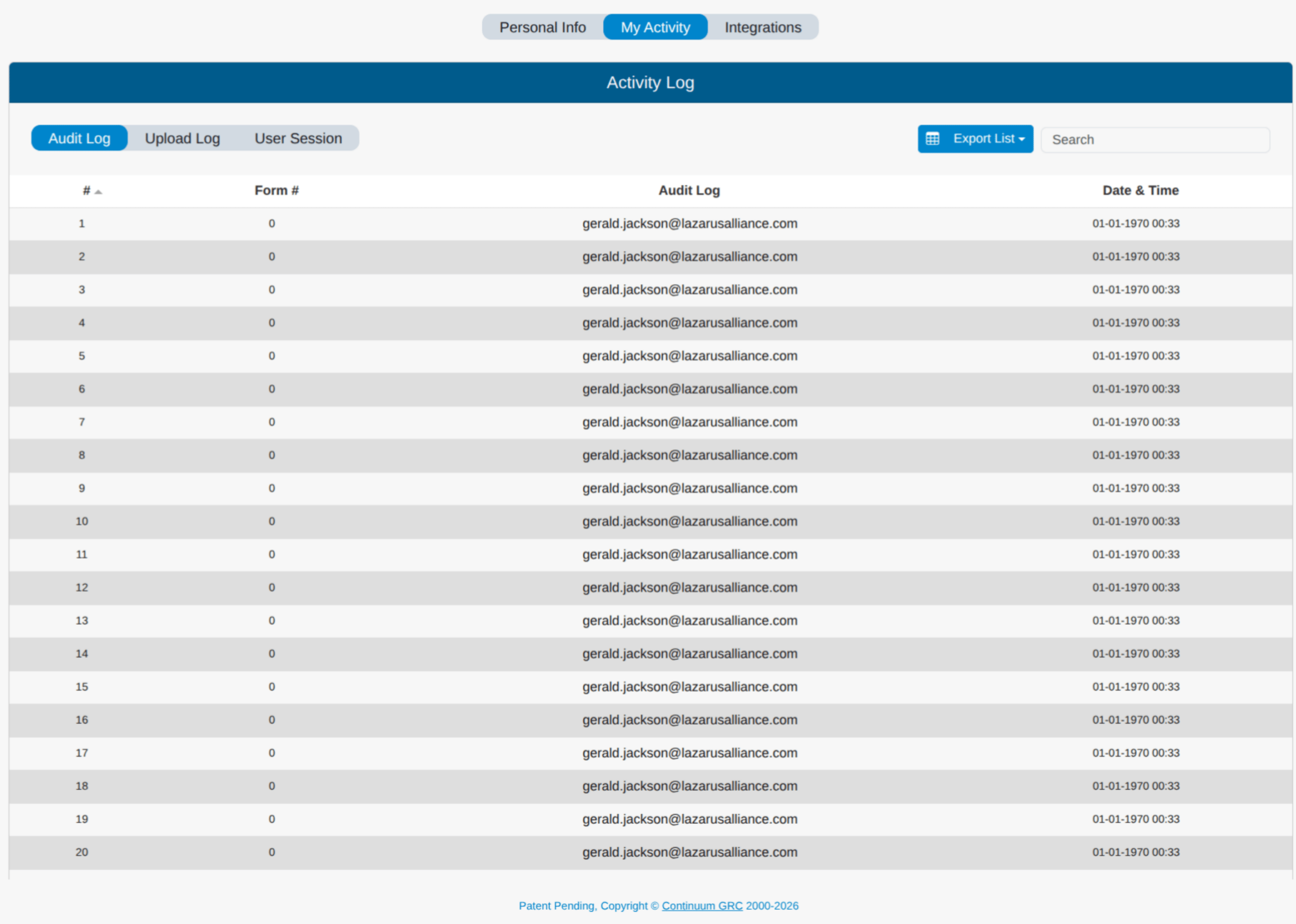
Your profile is also where you find a log of your platform activity. Click the My Activity tab to view the user events associated with your account.
My Activity
My Activity provides an overview of different types of activity logged by your account. This includes user sessions, file uploads, and other system events.
Integrations
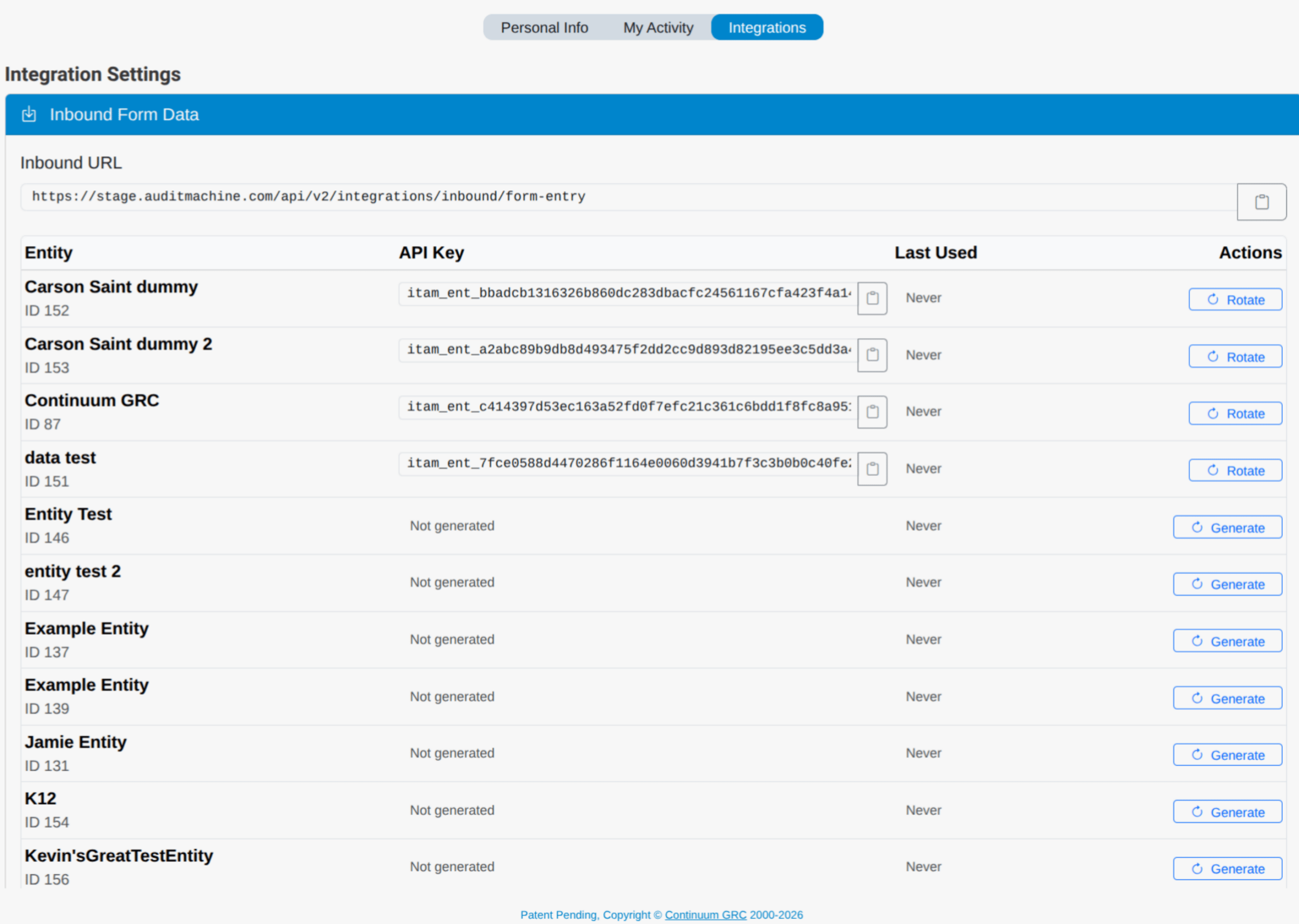
The Integrations section of your profile houses API keys used to authenticate your ITAM account with other platforms and services. Here, you can not only generate keys but also create new ones for existing integrations if security calls for it.