File Locations and Form Fields
Different forms often require similar or identical evidence, and a single entity may manage dozens of forms using identical files. Administrators need a way to juggle those files without tracking dozens of identical filenames and instances.
For that reason, and unlike a traditional database, the ITAM files system manages file instances tied to form fields:
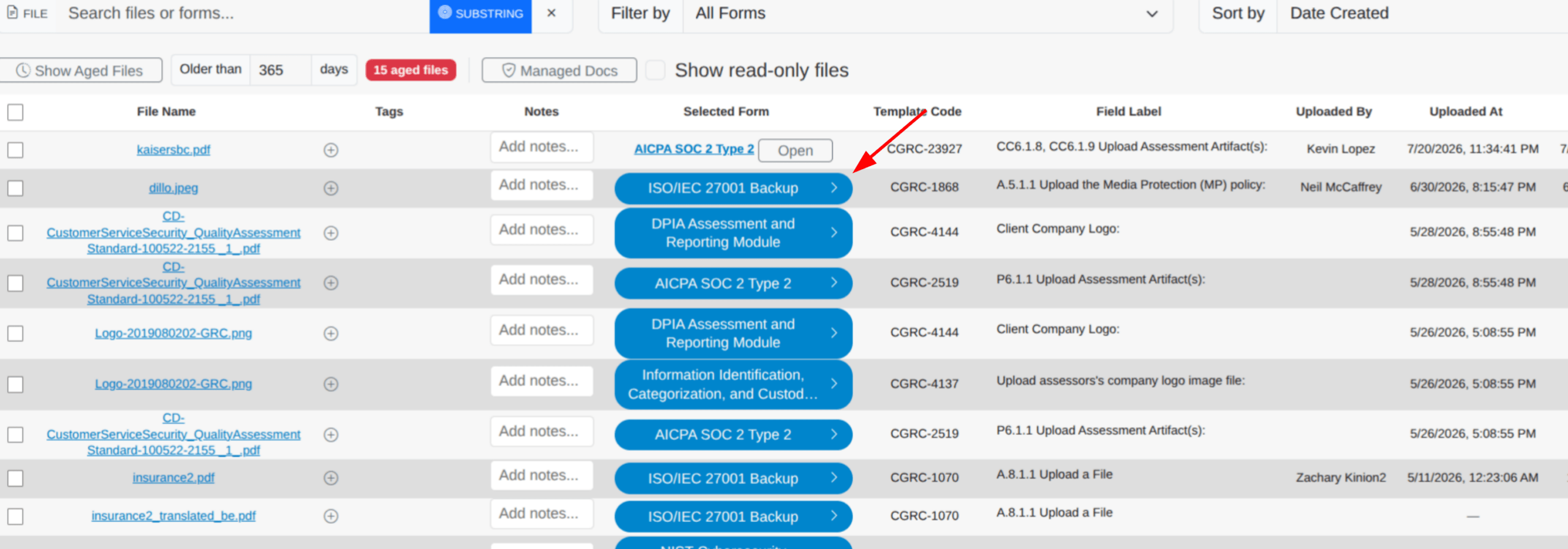
In the file navigation table, you will notice a Form Location column. Some files have a Select button in this column, which is a selection tool for picking the specific instance of a file you need.
Take a file named “3.1.2 a RBAC.png.” The Selected Form column shows that it is tied to the “NIST 800-53a Rev. 5 Preamble” form. Clicking the Go To Field link takes you to that field in that form. Click the Select button and pick a different option — AICPA SOC 2 Type 2, for example — and the text in the Selected Form column changes. Clicking Go To Field again now takes you into the AICPA SOC 2 Type 2 form.
This approach lets you search for and navigate to any file in the system without managing complex naming conventions.
Note: Because downloads and replacements act on the selected instance, make sure the correct instance is selected before you download or replace a file.
Viewing the Field Associated with a File
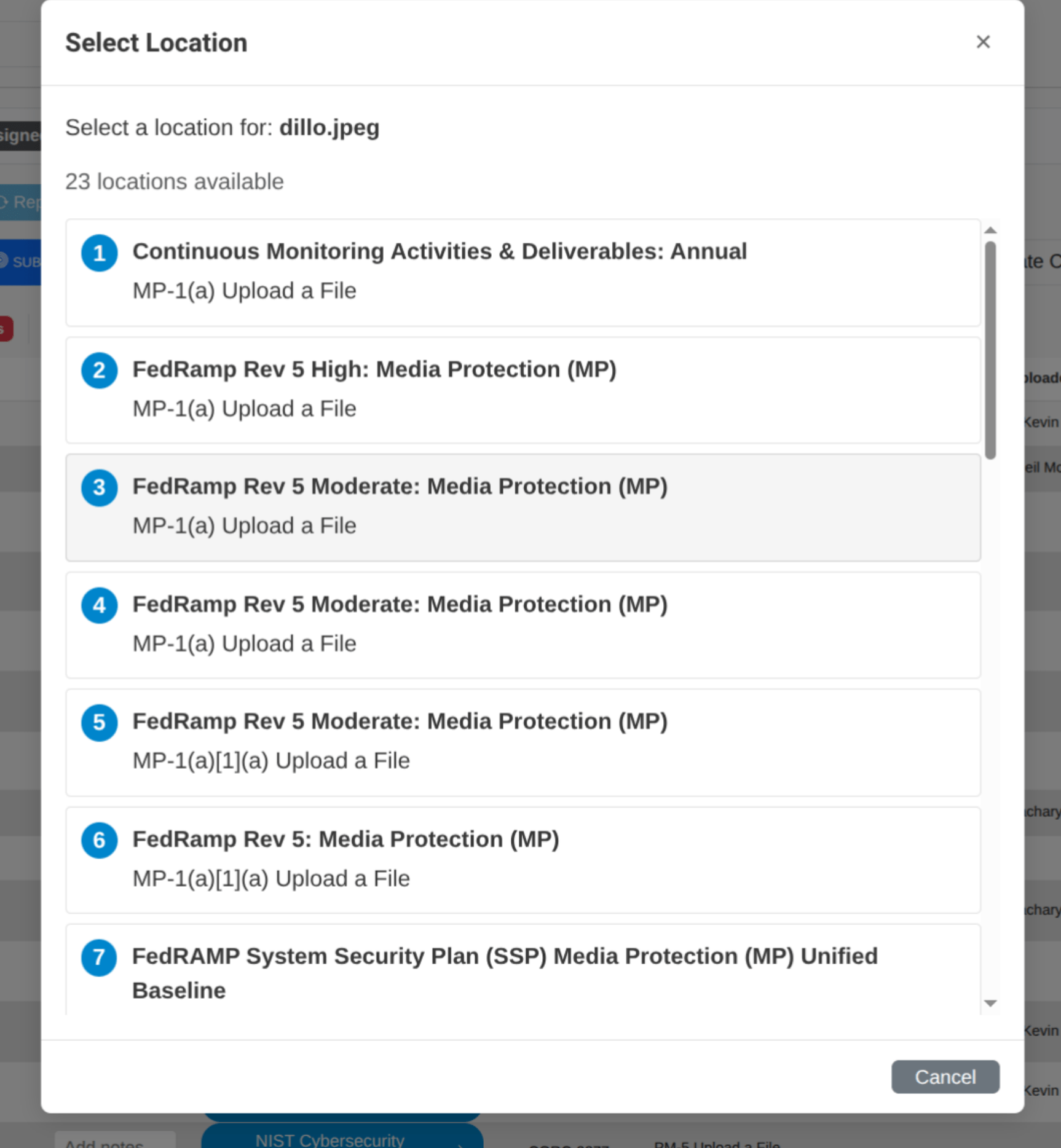
Each entry in the File Manager includes a link to the field associated with the file. If the file is located in more than one field, click the button in the Selected Form column, then select the form and field representing the specific file version you want to access.
Copy File to Field
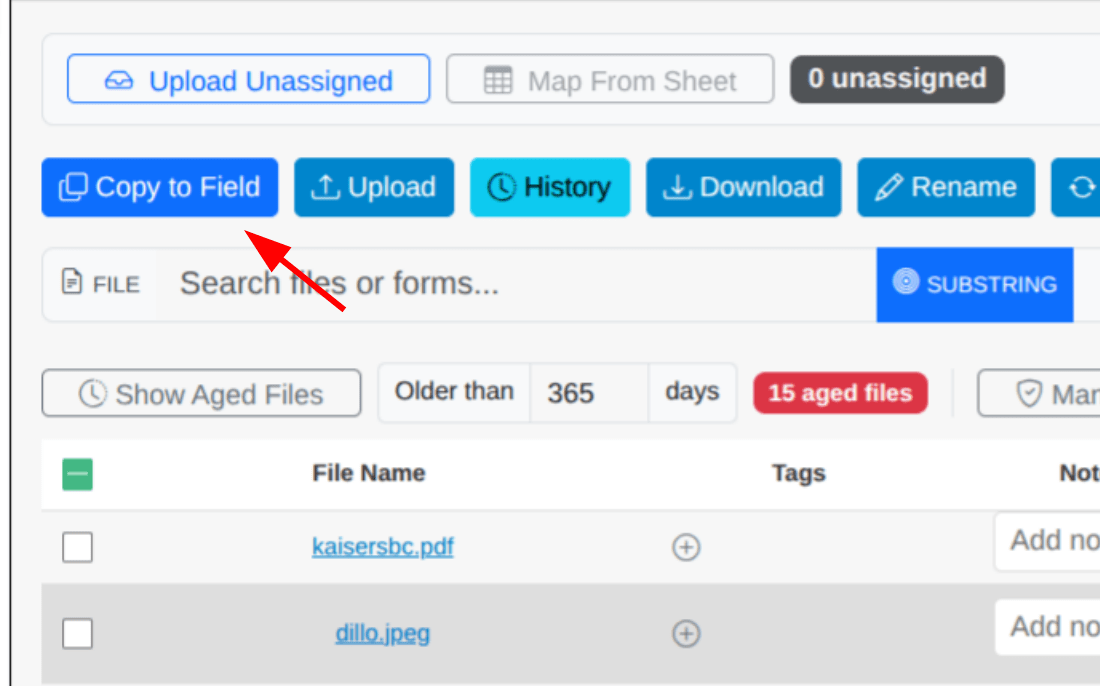
To make it easier to copy evidence files across forms, the Files dashboard includes the Copy to Field button. This takes a single file and makes a copy in a specific file upload field on any form on your ITAM server.
- Select a file. This only works with one file at a time; selecting more than one disables the copy feature.
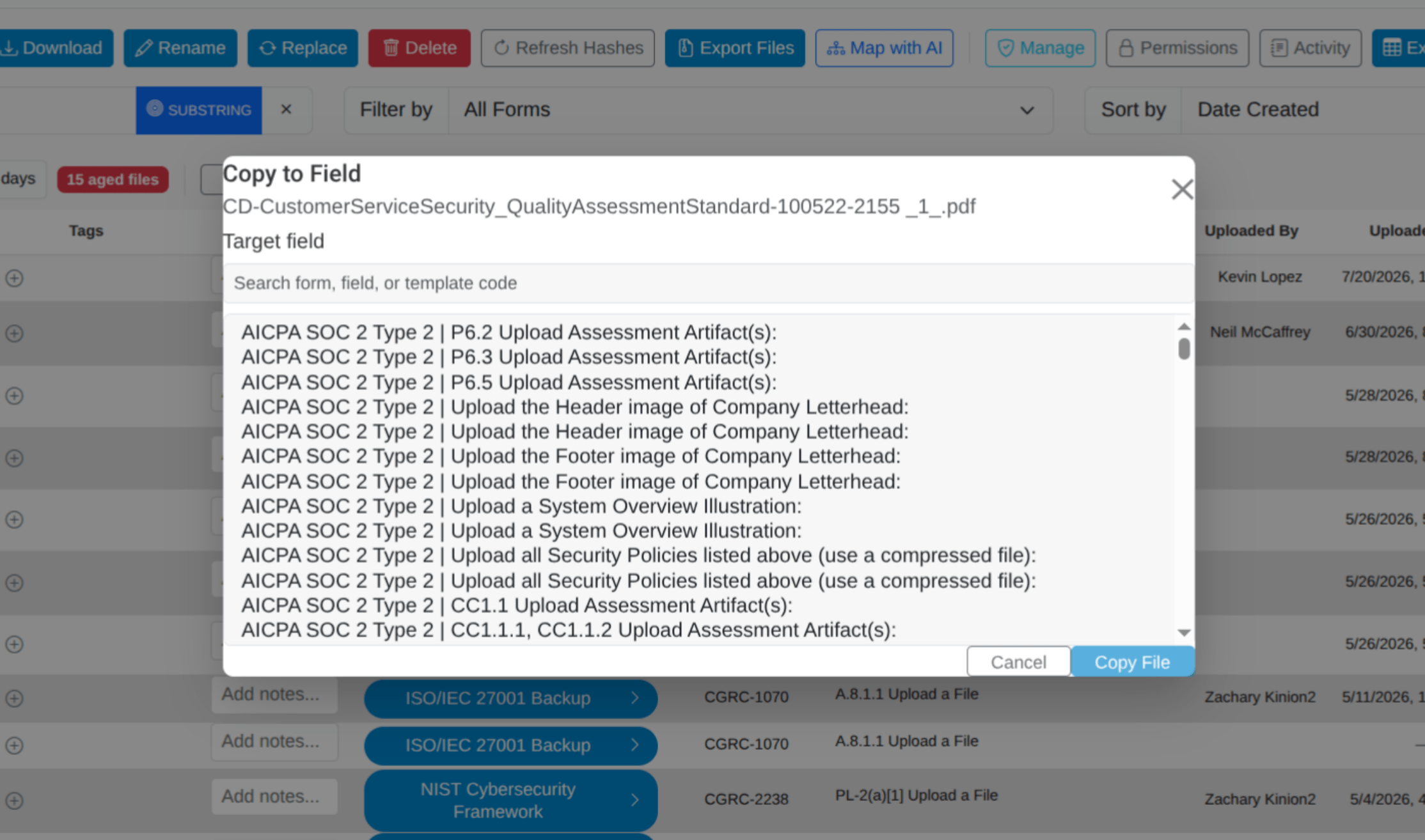
- Click Copy to Field. A pop-up lists the potential target fields available on your ITAM server.
- Select one and click Copy to Field.
Note: The file must already be assigned to at least one field. The feature does not work with unassigned files.