Managing Portal Entities
Entities are logical groups of users and often represent organizations with which users and forms are associated. Depending on how your organization uses the IT Audit Machine, you may see it represented by a single entity or multiple entities in your portal. Some organizations use entities to represent different departments. If your organization creates forms used by other entities, you will see them here and can manage them through this interface.
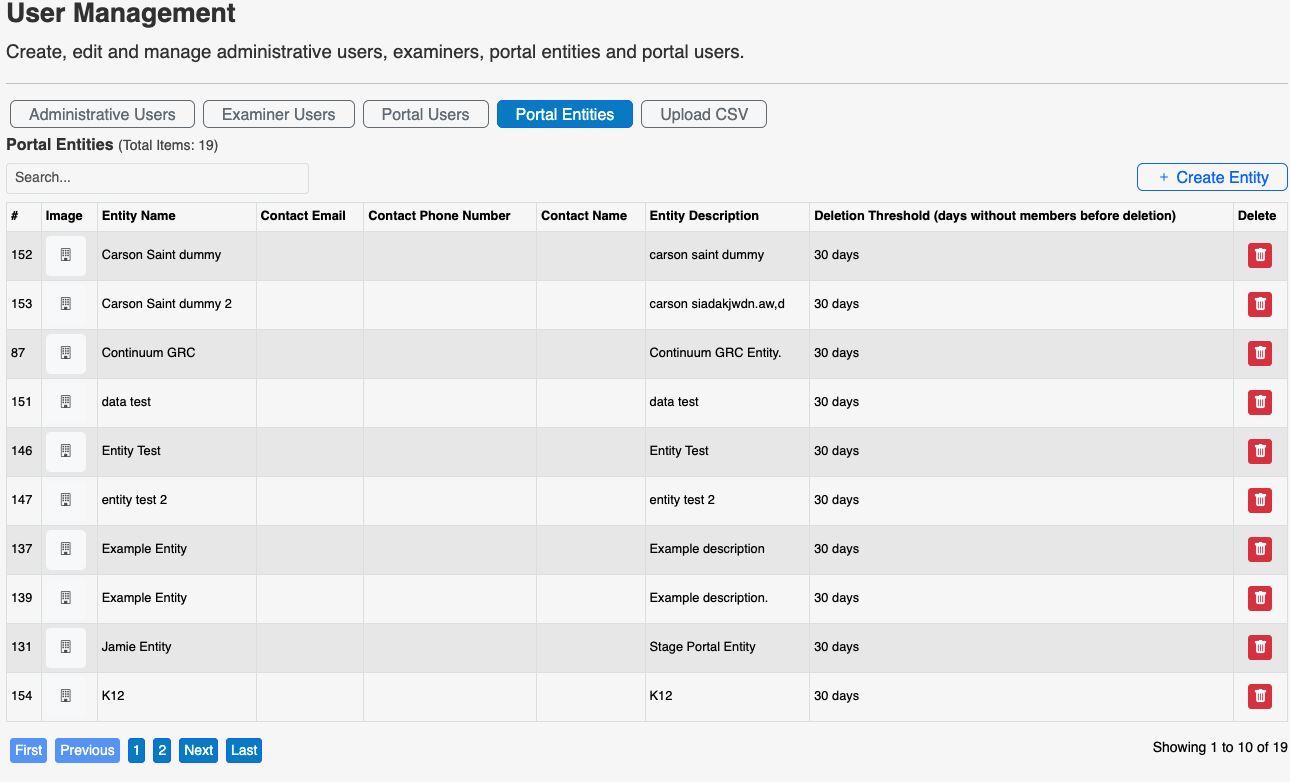
Entities are used to segregate some data, especially in reporting.
Adding Entities
Entities are added using the Create Entity button, which will display the Add Entity screen.
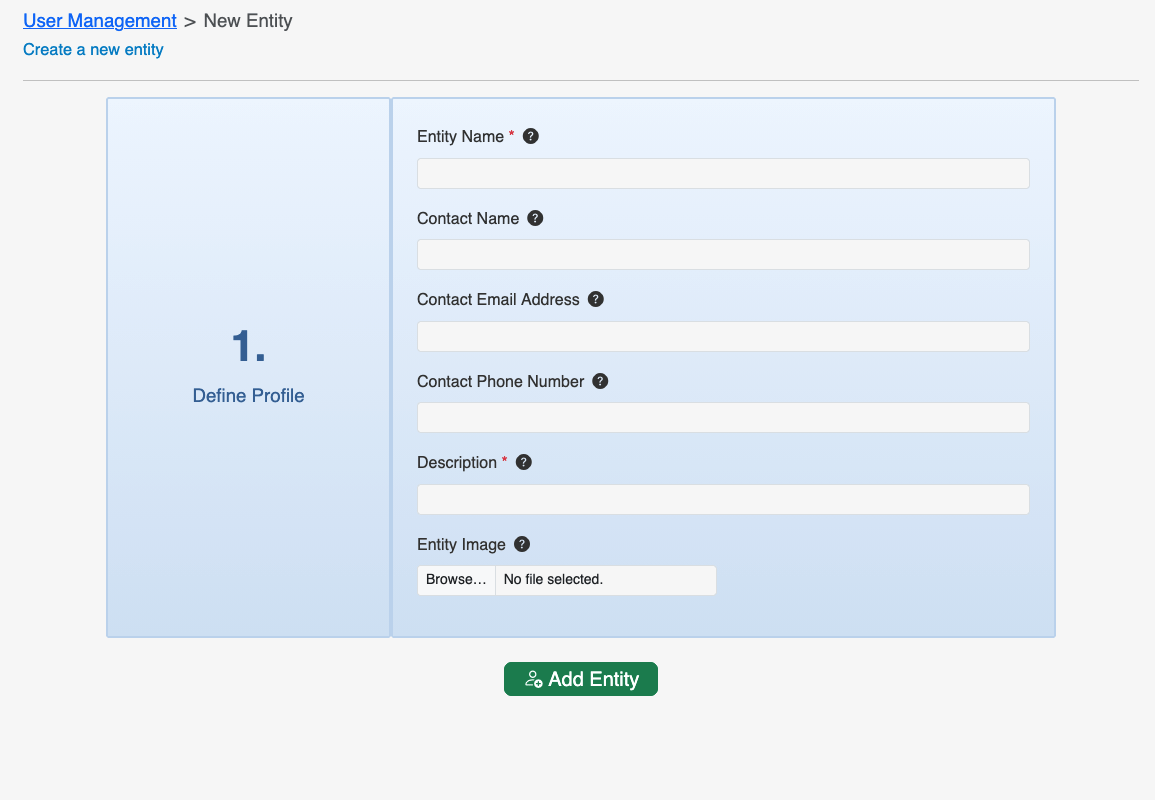
- Entity Name: The name by which the Entity will be known.
- Contact Name: The primary contact for that entity.
- Contact Email Address: The primary email for the entity contact.
- Contact Phone Number: The phone number for that contact.
- Description: A description of the Entity (what logical or organizational unit it represents.
- Entity Image: A logo or symbol that denotes that entity or its brand.
Note: Only the Entity Name and Description are required.
When the information has been entered, click the Add Entity button to complete the addition of the Entity.
Edit Entity
Clicking an entity in the entity list will pull up the Edit Entity screen.
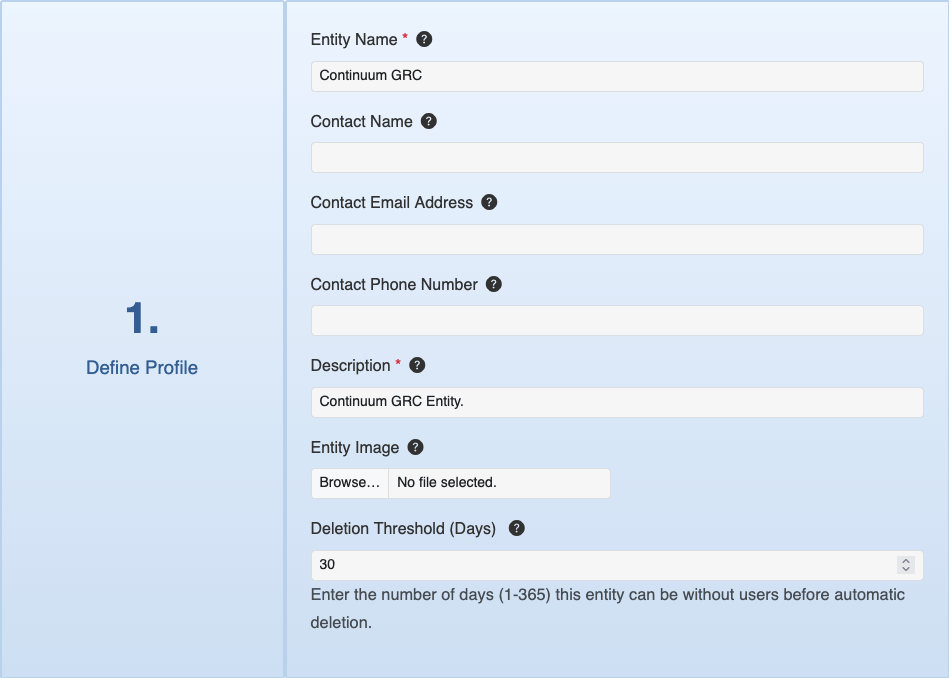
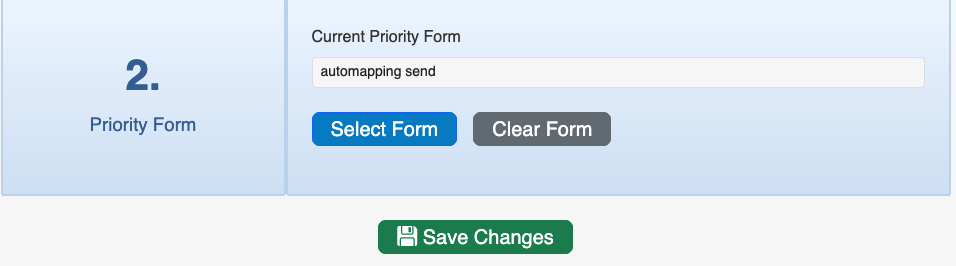
Like users, some information about the Entity is only editable after the Entity has been created.
Make any necessary changes, then click Save Changes to complete the edits.
Deleting an Entity
Deleting an entity is possible, but should be approached with caution. Like the other records in the User Manager, the delete button is part of the entity record.
A deleted entity will no longer have access to ITAM.