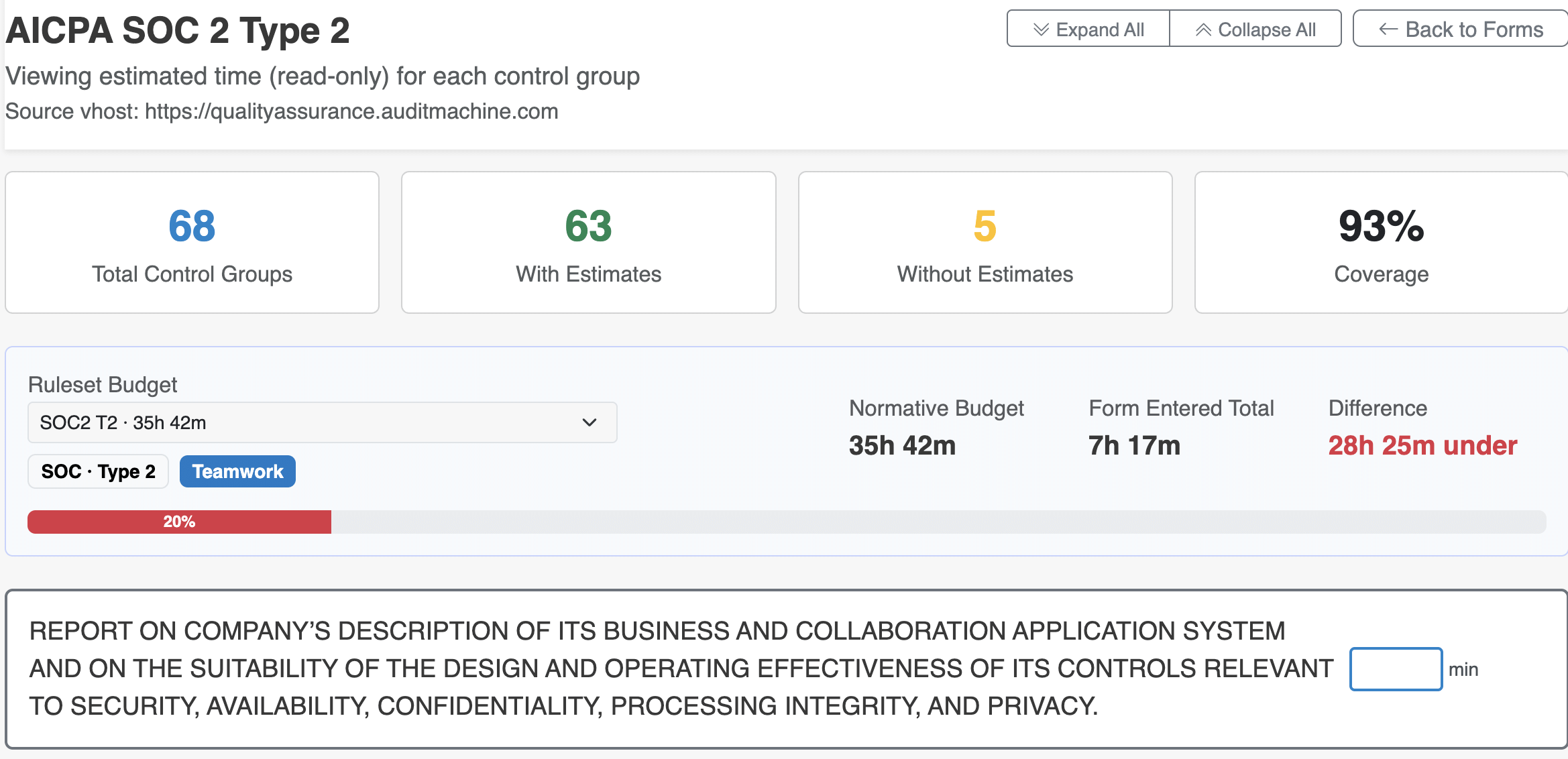
Time Rules and Estimating
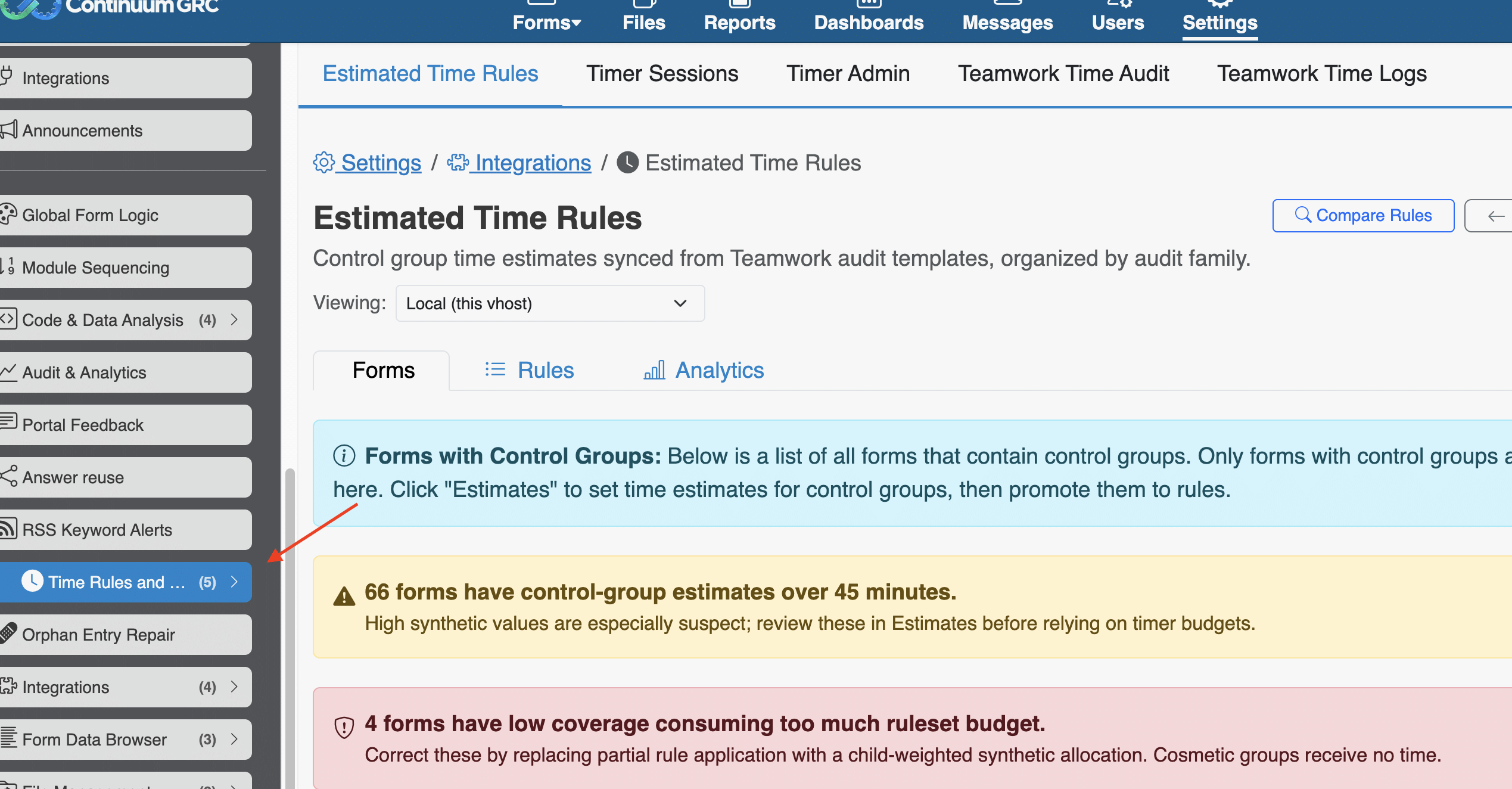
Estimated Time Rules, or timer rules and sessions, provide a comprehensive overview of timers and estimated completion windows for forms and other ITAM tasks. We cover form and project timers in another lesson. Still, administrators have another set of tools to track and monitor timer sessions and estimates across both ITAM and The Teamwork platform.
Estimated Time Rules
Estimated Time Rules are estimations of how long it takes to complete a particular task in a form–in this case, a task being a form element. The Time Rules dashboard covers a broad view of timers and rules across the ITAM instance. It includes an overview of Forms, Rules, and Analytics.
| Category | Function |
|---|---|
| Analytics | Analytics provides a high-level overview of forms, coverage, and time estimates across all the forms in the ITAM instance. |
| Rules | Rules offers another high-level view, this time of the time-estimate rules across all forms on the server. Here, you can dig into control-specific time rules, pull rules from Teamwork, and edit rules. |
| Forms | Forms cover the broader timers and estimated completion times for the elements in that form. At the top of the dashboard, you will see a few potential warnings. The Yellow box notifies you if an inordinately large number of control groups are longer than expected (suggesting time budget inflation). The red box alerts you when forms have significant time budgeted to certain areas without corresponding coverage across the overall form. |
Forms
To get a more granular view of time estimates and budgets, scroll down to the dashboard. Here, you can list form coverage by Entity and Form ID, and category and subcategory (or framework and specific forms).
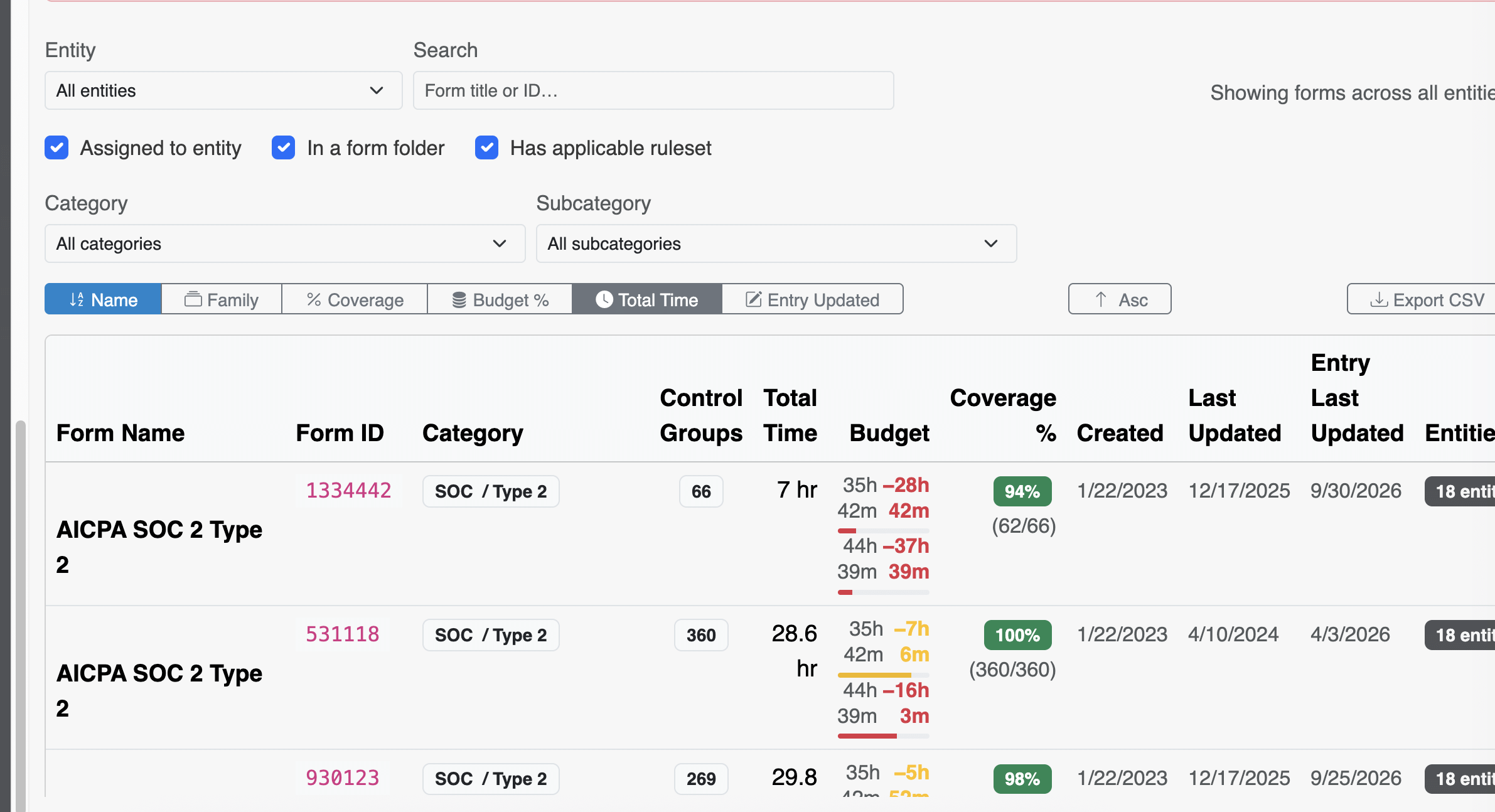
The dashboard shows you information for each form, including (from left to right):
- The Form Name
- The Form ID
- The Category and Subcategory of that form
- The total control groups in that form
- The total time estimated
- The budgeted time for that form
- Coverage of that form by users assigned to complete control groups,
- Time and date information covering creation and last updates, and
- The versions of that form.
Additionally, the far right of each row includes two buttons:
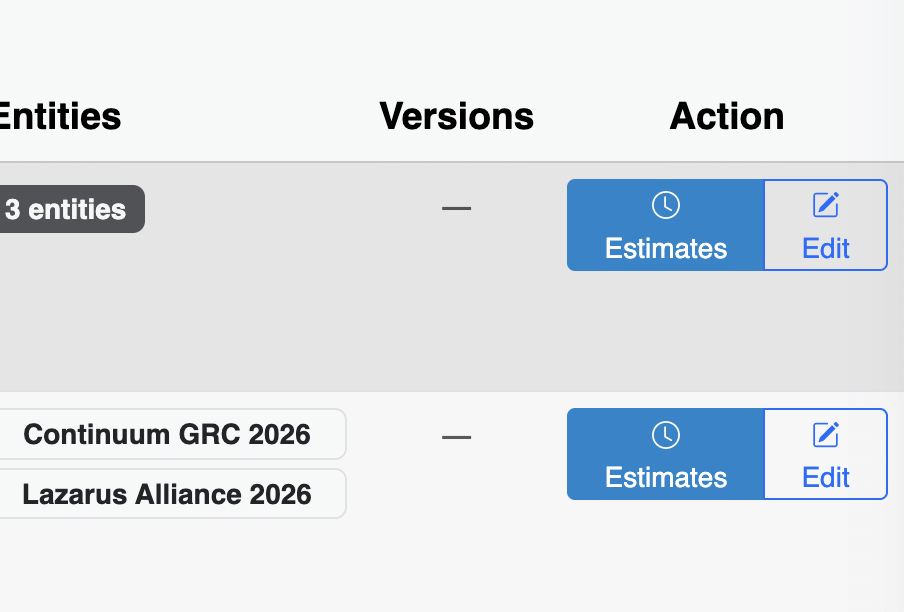
- The Edit button takes you to a module-specific screen where you can modify and set up new time estimate rules at an incredibly granular level, including at the form-field level.
- The Estimates button shows a field-by-field breakdown of time estimates that you can adjust as needed.
Estimates