Uploading, Renaming, Replacing, and Downloading Files

Uploading a File
Each entry in the File Manager includes a link to upload a file. Although the link sits on an entry, the Upload feature creates a new entry rather than modifying the selected one. Clicking Upload opens your computer’s file selection interface; selecting a file uploads it to ITAM and associates it with the same form and field as the original file.
Bulk Uploading Evidence and Assigning with AI
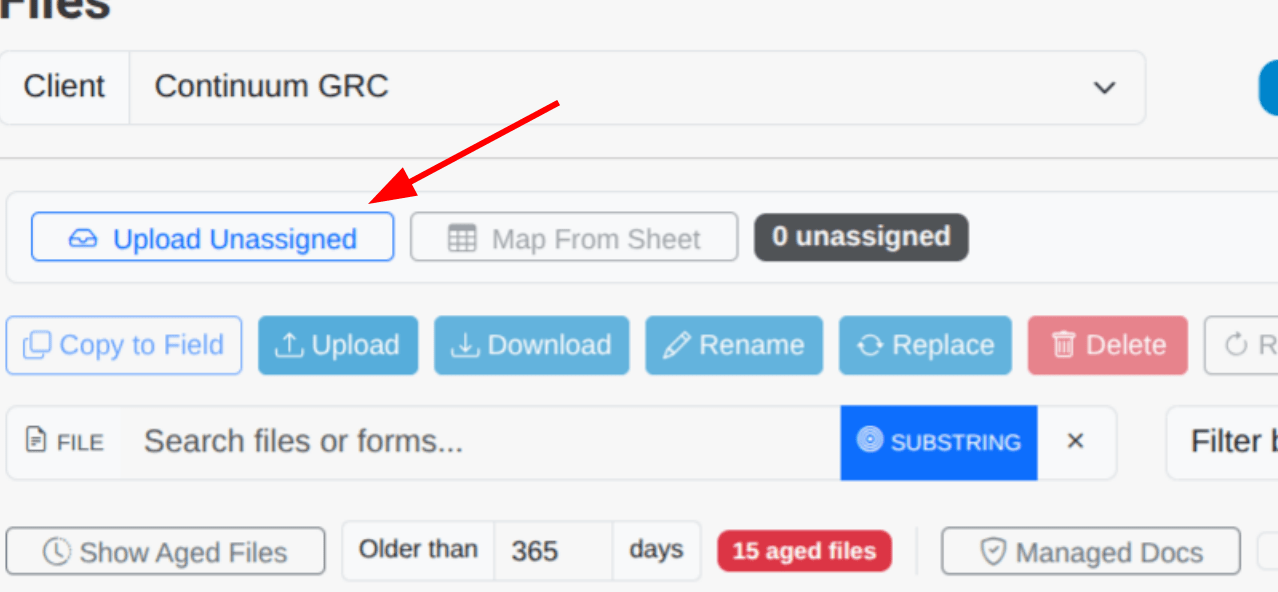
Traditionally, uploading a file to ITAM means assigning it to a particular field in a specific form, which ties that file to the framework and entry it serves as evidence for. That process becomes tedious with many documents at once, so ITAM includes an AI assignment mechanism for bulk uploads.
- In the File Management dashboard, click Upload Unassigned and select one or more files to upload. When they finish, the Selected Form column reads “Unassigned.”
- Select one or more of the unassigned files, then click Map with AI. A dialog appears while the system maps assignments. This can take a few minutes, depending on how many files and forms your ITAM instance holds.
- When it finishes, you see a list of proposed target forms and fields. Deselect anything that does not match an appropriate field, then click Apply Assignments.
Renaming a File
Each file displayed in the File Manager includes a link to rename it. Clicking the link displays a prompt confirming that you want to rename the file, along with a field for the new name. Enter the new name and click Rename, or click Cancel to leave it alone.
Renaming reorganizes your file list, so you will need to relocate the file based on its new name.
Warning: A file’s renaming cannot be undone. To restore the previous name, you must rename the file again.
Viewing or Playing a File
If you click a file name, ITAM attempts to display a preview if the file can be rendered visually. If the file is video or audio, ITAM attempts to play it.
Downloading a File
There are two ways to download a file:
- Click the file name, which prompts ITAM to display a preview. The preview screen includes a Download button that saves a copy to your local computer.
- Select the file using the checkbox at the far left of its row. Checking the box highlights the record and displays new options above the list of files; clicking Download starts the download in your browser. If more than one file is selected, ITAM attempts to download each one.
If you download more than one file at a time, your browser may prompt you to confirm the action.
Replacing a File
Select a file, click Replace, and choose a new file from your machine. ITAM uploads it and replaces the existing file.
Note: This only replaces the file at the selected form location. See File Locations and Form Fields for how file instances work.
Deleting One or More Files
Selecting one or more files in the File Manager also provides the option to delete them. Click the Delete button displayed when files are selected, and they are removed immediately along with a notice.
Warning: There is no confirmation before deletion. Use this only when you are certain.