Entry Manager
An Entry is a term used in ITAM to refer to data a user has entered on a form. The Entry Manager is the tool ITAM provides to view entered data, import and export entries, delete entries, review entries, update statuses, edit entries, and interact with users.
This section will cover how to use the Entry Manager to select an entry to review and the options available when reviewing a particular entry.
Accessing the Entry Manager
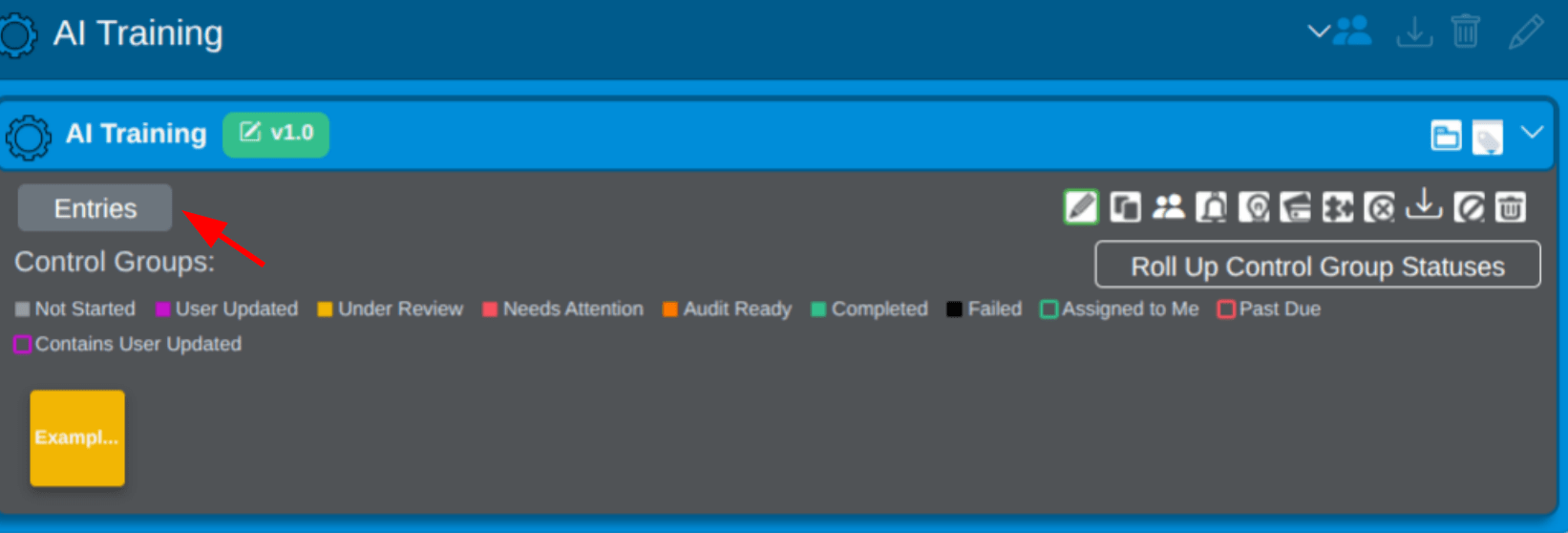
To access the Entry Manager, select a Form from the Forms List in the Form Manager and then select the Entries button on the advanced options above the form entry.
The main page of the Entry Manager consists of multiple sections. There is a main table that displays all your entries. Depending on the data in each entry, the table displays the Entity, the Template Document (if any is associated), an option to enter audit mode, and the date the record was created.
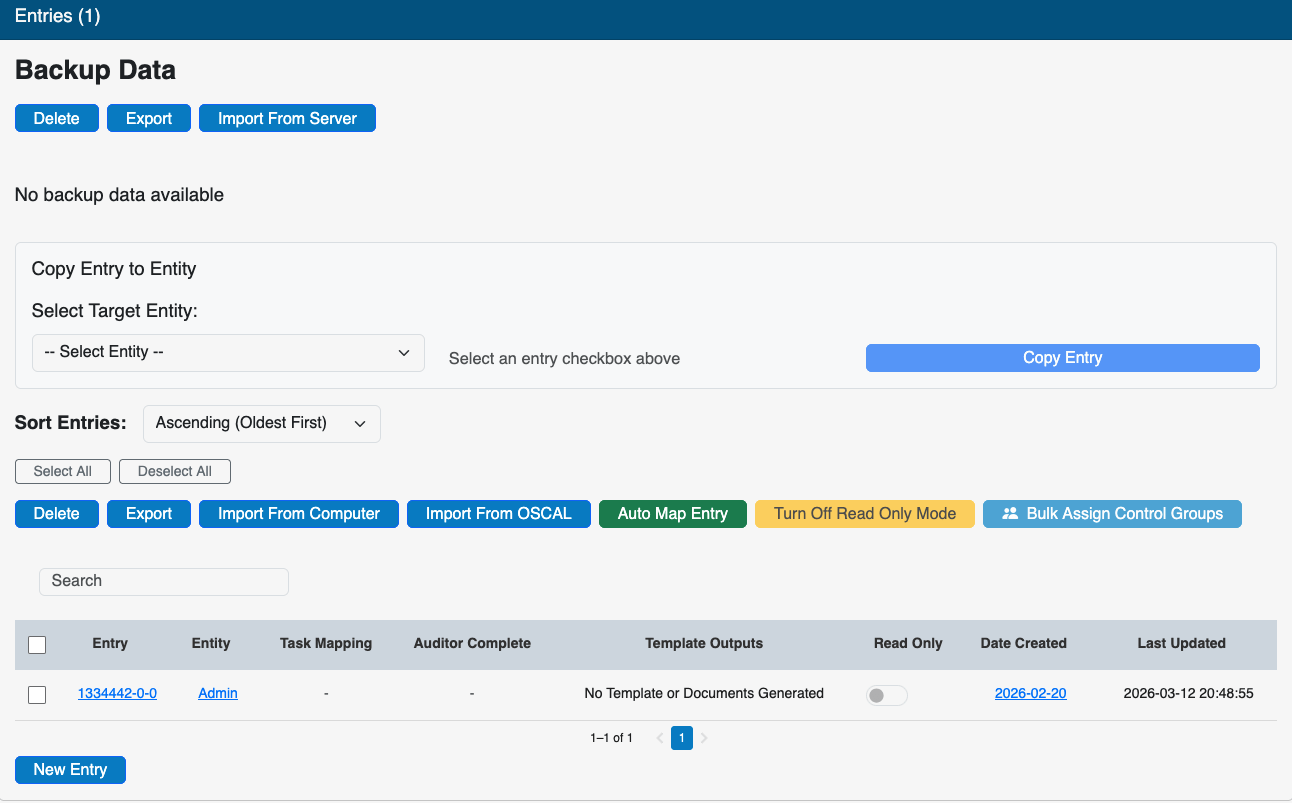
On the top left of the table, options to Delete, Export, or Import from Computer entries are provided. At the top right of the table, options let you filter users and display selected fields. A drop-down menu to sort your entries by any field is available at the bottom right of the table.
On the lower half of the page is a list of administrators, examiners, and portal users who have access to the form associated with the entries. At the bottom of the page is metadata about the form, including the Created Date, the Administrator who created the form (Created By), the total number of Completed and Incomplete entries, and the time since the last Entry.
A user may also lock an entry so that changes from outside users are not allowed by clicking the “Read Only” toggle. All unsaved changes and future changes will be discarded or disallowed until that switch is toggled.
Editing an Entry
When viewing an entry’s details, you may edit it by clicking the Edit link at the top right corner of that page. Placing the entry in edit mode lets you edit all pages of a multi-page form.
If a user locks an entry, the edit options will be redirected to the view page, and a notification will be displayed indicating who locked the form and the date. A button will be available to unlock the form if the user is certain that the locking user is no longer modifying it.
It is also important to remember that forms submitted via the Admin Portal will create a new database record, which can be viewed in the Admin View. The User Portal is more collaborative, and a single database entry will be made and updated with each form submission for as long as the User is subscribed to that specific form.
These two unique form-submission behaviors offer a collaborative experience for groups updating a single form in the User Portal and for individual assessments by administrators in the Admin Portal form viewer.
Navigating Entries
As an alternative to opening each entry from the Entry Manager, the user can use the menu on the right-hand side to navigate the entry:
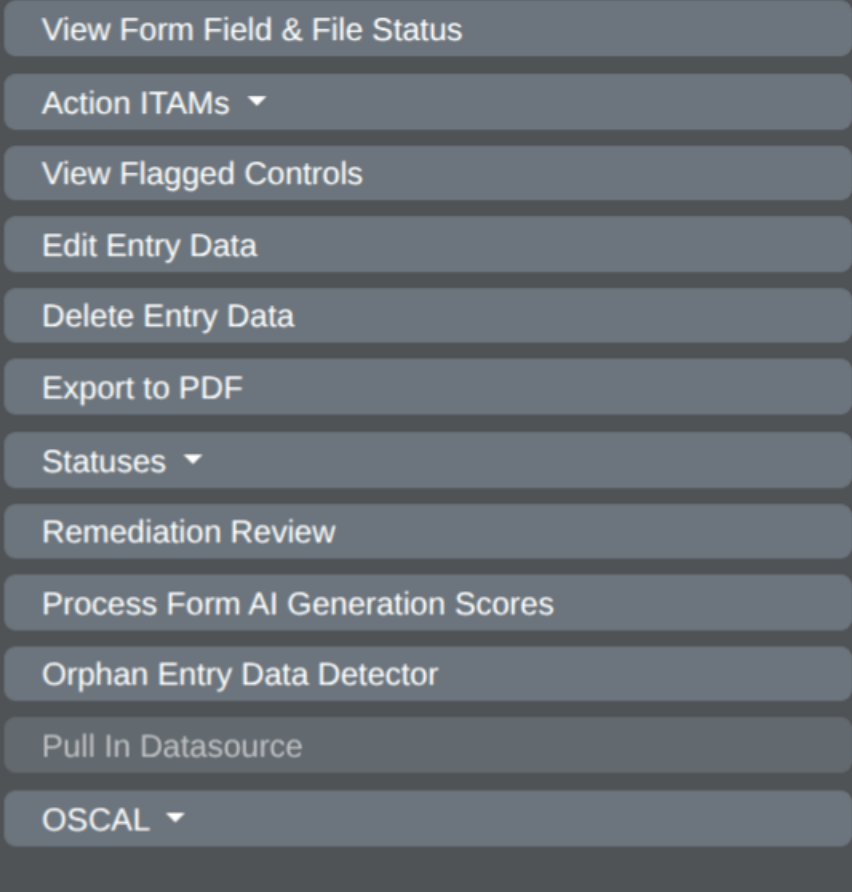
| View Form Field and File Statuses | |
| Action ITAMs | |
| View Flagged Controls | |
| Edit Entry Data | |
| Delete Entry Data | Selecting the Delete Entry Data button will delete the current Entry. |
| Export to PDF | The Export to PDF button generates a PDF of the current Entry and initiates a download to your system. |
| Statuses | Status Indicators can be updated anywhere they are visible. See the Form Status Indicators page for more information on how to work with status indicators. |
| Remediation Review | |
| Process Form AI Generation Scores | |
| Orphan Entry Data Detector | |
| OSCAL |
Ready to build your Roadmap to Risk Reduction?
Call 1-888-896-6207
Call 1-888-896-6207
Start Your Free 14-Day Trial
FedRAMP Authorized GRC Platform Featuring the World's First AI Auditor