File Manager
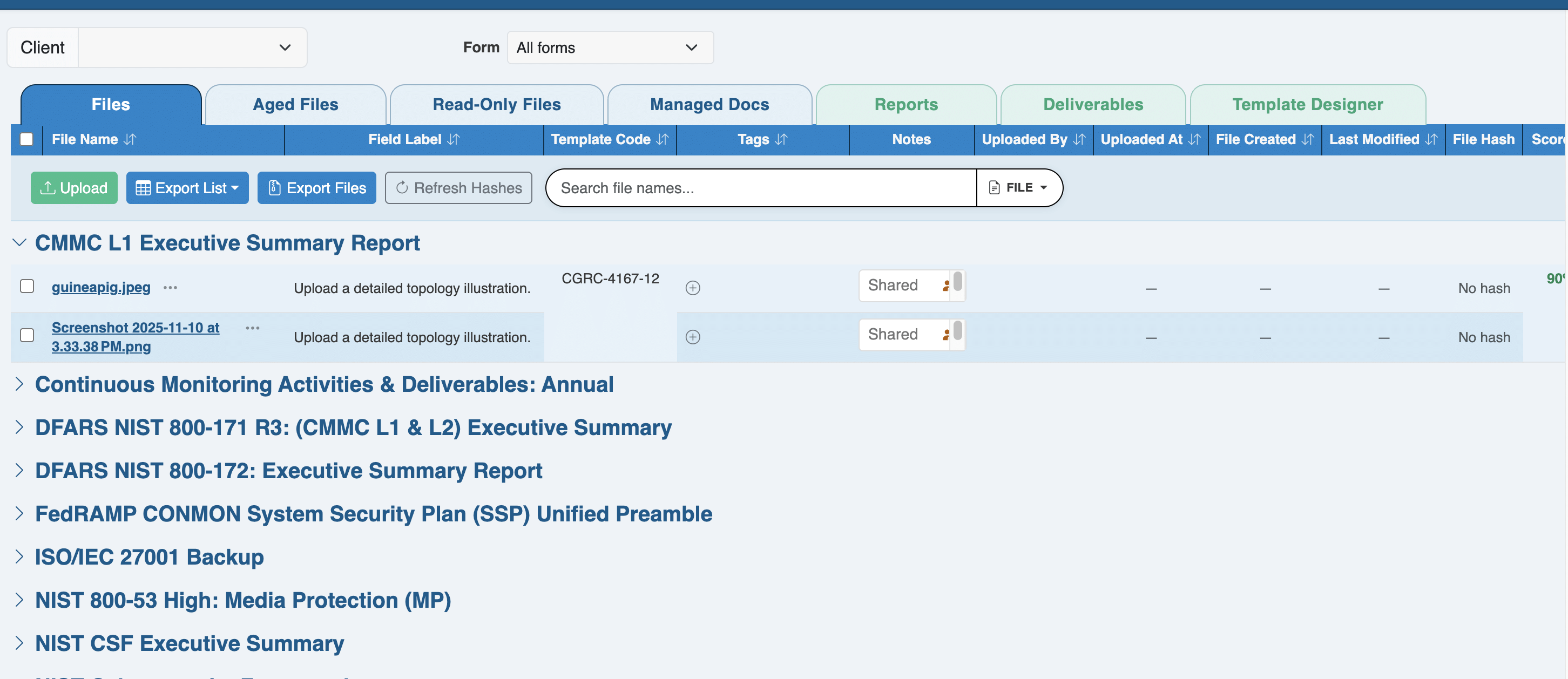
The audit and evaluation process depends on documentation and evidence to show that an organization has achieved compliance with a control. In ITAM, much of that evidence consists of files uploaded into the appropriate fields in a form. These files may be images, text, affidavits, spreadsheets, or almost any other type of file that conveys the information needed. The File Manager is a convenient way to view the files uploaded by an entity and interact with them.
File Manager View
Access the File Manager from the main menu by clicking the second icon from the left.
Selecting an Entity
When you first open the File Manager, it typically does not display any file data until you select an Entity from the Select an Entity dropdown at the top right of the working area. To select an Entity, click the dropdown, choose the entity whose files you wish to review, and then click the Go button.
Filtering Files
Once an Entity has been selected and the data returned, you may receive more data than anticipated. Fortunately, you can filter the data using the search field to the right of the display above the returned data. Typing anything into the field starts filtering the data based on items that match the data in any returned fields. For example, you can enter a Form Name, and the list of files will be restricted to those associated with that form.
Sorting Files
The File Manager in ITAM includes the same sorting options as many other data lists and reports in the system. The system highlights an arrow next to the field currently used to sort the data, with an up arrow for ascending and a down arrow for descending. Clicking the title of a column changes the sort to that field. Clicking the title of a column again will reverse the direction of the sort in that column.
Downloading a List of Files
You can download the list of files displayed in the File Manager in one of three formats: Comma-Separated Values (CSV), Excel, or PDF. To download the list of files, click Export List, then select Save as CSV, Save as Excel, or Save as PDF. Each button generates the appropriate file size and initiates a download in your browser. The list downloaded will contain only the files associated with the current search filter.
Renaming a File
Each file displayed in the File Manager will also include a link to rename it. Clicking the link will display a prompt confirming that you truly wish to rename the file and a field to enter the new name. To rename the file, enter the new name and click Rename. To avoid renaming the file, click Cancel. You cannot undo a file rename. You must rename the file to restore the previous name.
Viewing or Playing a File
If you click a file name, ITAM will attempt to display a preview if it can be rendered visually. If the file is a video or audio file, ITAM will attempt to play it.
Downloading a File
You can download a file from the File Manager in two ways. The first is to click the file name, which causes ITAM to attempt to display a preview of the file. On the preview screen that pops up, you can download the file. If you click the Download button, a copy of the file will be downloaded to your local computer.
The second way to download a file is to select it via the checkbox at the far left of the line item representing the file. Checking that box highlights the record and displays two new options above the list of files. Click the Download button to start the download in your browser. If more than one file is selected, ITAM will attempt to download each file.
If you download more than one file at a time, your browser may prompt you to confirm that you authorize the action.
Deleting One or More Files
In addition to downloading files, selecting one or more files in the File Manager lets you delete them. To do so, click the Delete button that appears when you select one or more files. The files will be immediately deleted, and a notice will be displayed.
Replacing a File
Select a file, click Replace, and select a new file from your machine. ITAM will upload it and replace the existing file.
Uploading a File
Each entry in the File Manager comes with a link to upload a file. Although the link is on an entry, the Upload feature creates a new entry rather than modifying the selected one. Clicking the Upload link will open your computer’s file selection interface. Selecting a file uploads it to ITAM and associates it with the same form and field as the original file.
Ready to build your Roadmap to Risk Reduction?
Call 1-888-896-6207
Call 1-888-896-6207
Start Your Free 14-Day Trial
FedRAMP Certified GRC Platform Featuring the World's First AI Auditor