Form Integration
The IT Audit Machine creates forms that can be easily integrated into an organization’s existing website. Administrators can use multiple embedded code options to link or deploy an ITAM form on an existing webpage using a familiar coding method.
Integration Options
ITAM offers multiple options to integrate your forms and data, depending on the type of integration your organization wants. If you want to work with one of the 3rd party providers that have already provided an integration with ITAM, that option is available. If you want data from your ITAM Forms sent to your website via an API or Webhook, you can configure that on your form. Finally, if you want to link to or embed an ITAM form in your existing website, you can do that too.
Existing Platform Integrations
Several third-party providers have created integrations for the IT Audit Machine forms. These integrations are specific to each platform, and we add new integrations periodically.
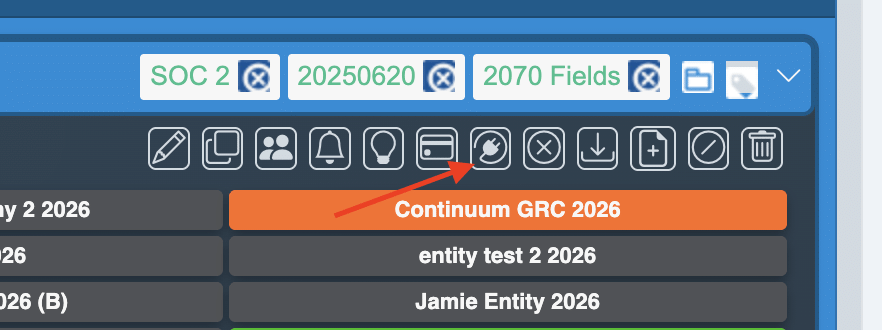
To see what integration options are available for a form, use the Integration icon on the form.
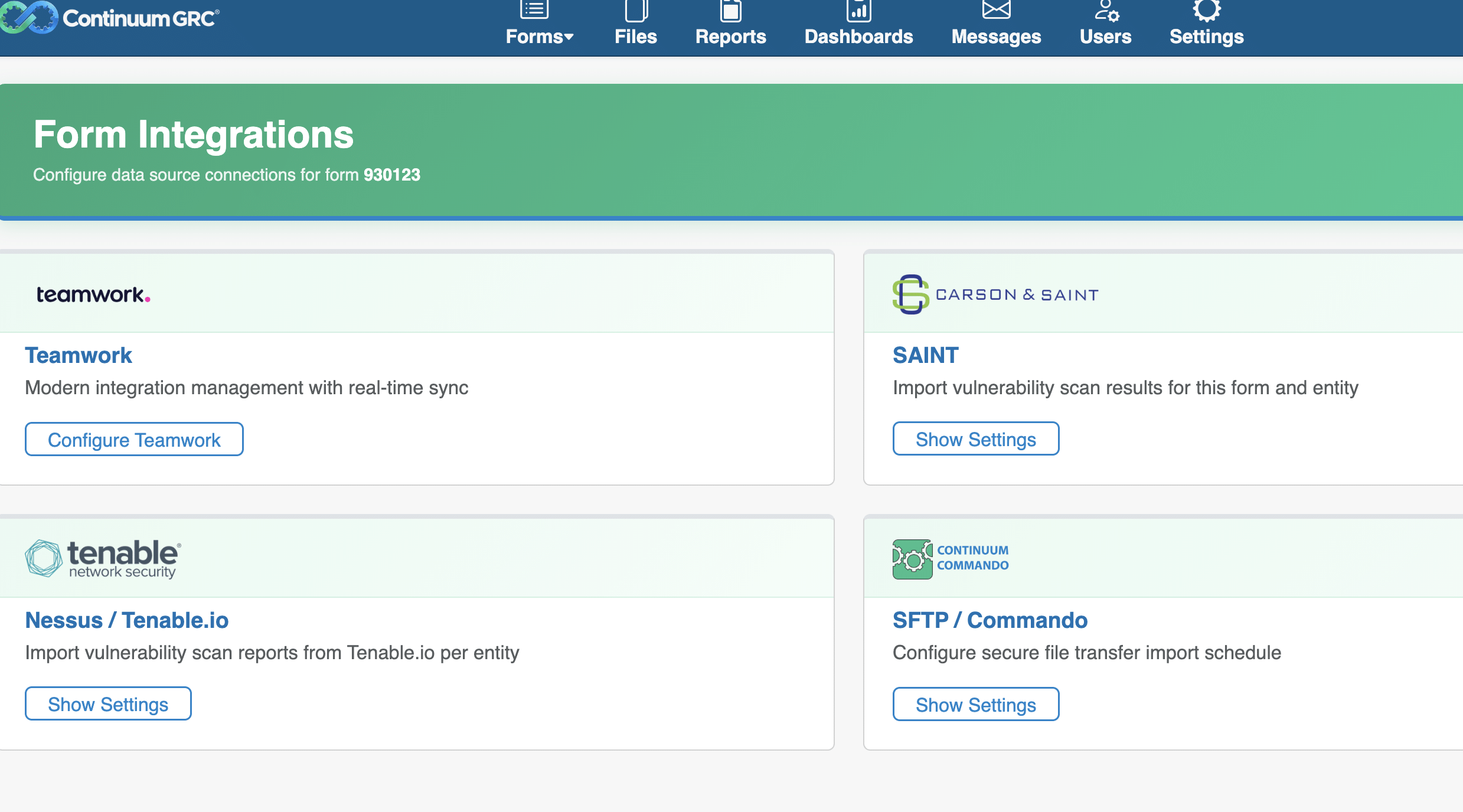
Clicking the Integration icon on a form takes you to the Integration Settings page, which lists the available integrations. Clicking an available integration shows the fields the provider requires to integrate with their environment. Each provider has its own requirements for integrating with its system.
To find out more about existing platform integrations, please contact the ITAM Service Desk.
Webhook Integrations
If your website can receive custom data via an API or other methodology, ITAM can send information via the Notification or Logic interface. See the Form Notifications and Form Logic pages for more details.
Embedding Forms and Fields
If your organization desires to integrate an ITAM form directly into your website, you can use the Embed options at the form or field level. The form and field embedding options work similarly: the former embeds the entire form, whereas the latter embeds a single field.
Embedding a Form
The form embed options are found by editing the form and selecting the Form Properties from the Toolbox on the right.
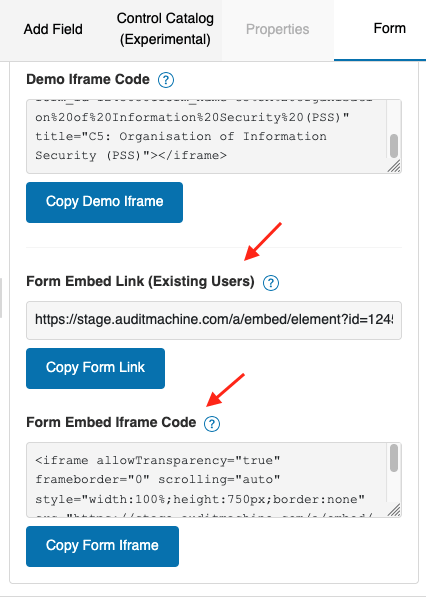
Clicking the Show More Options link expands the Toolbox to display additional form options. At the bottom of the options are the Form Embed Options.
Using The Iframe Code
The iframe code option allows an organization to embed a form directly on its website. The generated code will seamlessly insert the form into your existing web page, suppressing the form’s background, border, and logo header to avoid conflicting with your website design. You may need to manually adjust the iframe’s height to display the form’s Submit button properly.
Sample Code:
<iframe onload="javascript:parent.scrollTo(0,0);" height="1139" allowTransparency="true" frameborder="0" scrolling="no" style="width:100%;border:none" src="https://auditmachine.com/auditprotocol/embed.php?id=62826" title="Data Risk Calculator - Sample 0%-100%"><a href="https://auditmachine.com/auditprotocol/view.php?id=62826" title="Data Risk Calculator - Sample 0%-100%">Data Risk Calculator - Sample 0%-100%</a></iframe>
Using a Simple Link
If an organization cannot or does not wish to embed an iframe, it is almost always possible to embed a link. The Simple Link option creates a link that, in most cases, redirects the current page to the Form. Depending on the organization’s website configuration, the Simple Link may behave like the Popup Link.
It can also be used to share your form via email.
Ready to build your Roadmap to Risk Reduction?
Call 1-888-896-6207
Call 1-888-896-6207
Start Your Free 14-Day Trial
FedRAMP Authorized GRC Platform Featuring the World's First AI Auditor