The Form Menu
Once you’ve entered a form to work on data entry or management purposes, you’ll have access to context-specific features to manage form data entry and document generation.
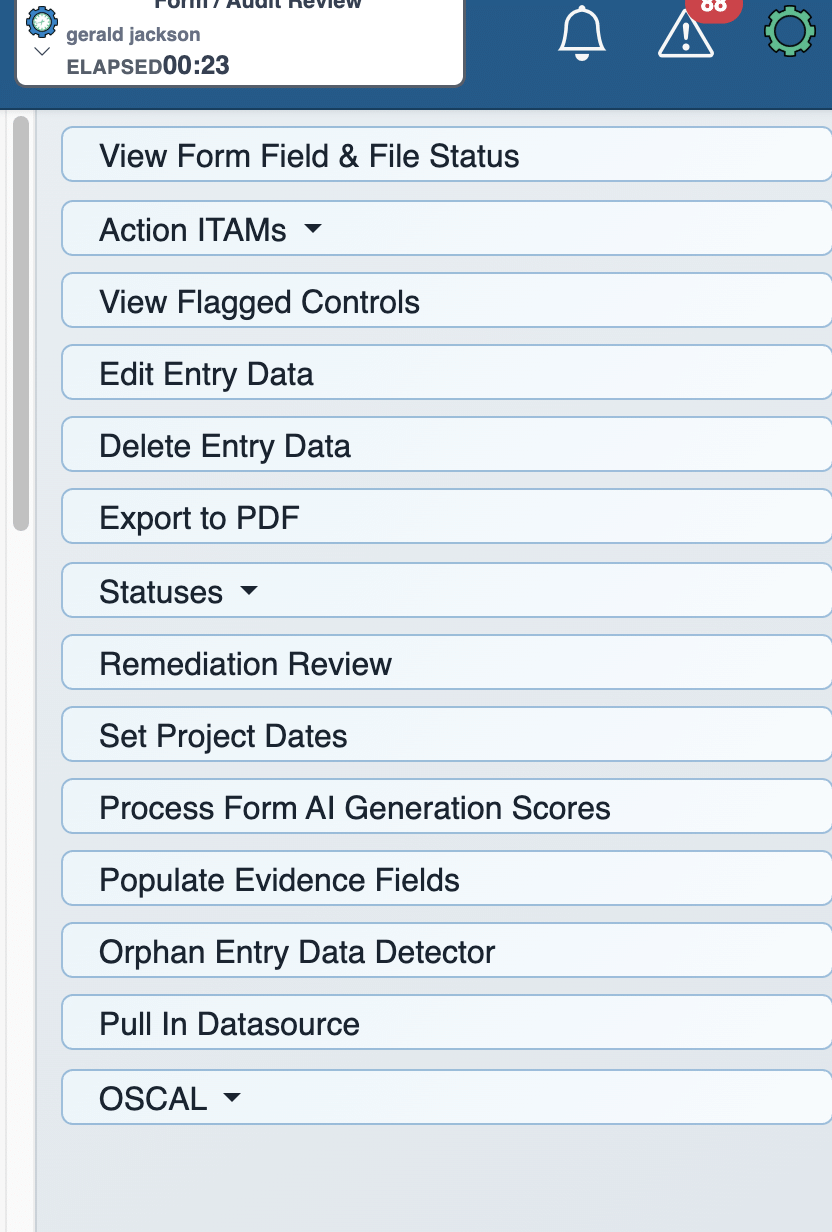
These features include:
| Menu Feature | Description |
|---|---|
| View Form Field and File Status | The View Statuses screen shows all field statuses in a given form. Each field is organized by status (Not Started, User Updated, Under Review, Needs Attention, Audit Ready, Complete, or Failed). Clicking a status unrolls an accordion list of the associated form fields, with links to jump to each field. The File Evidence Status Overview is similar to the View Statuses interface but focuses on fields related to user-uploaded file evidence. |
| Action ITAMs and Mass Assign Action ITAMs (Examiners Only) | The Action ITAMs menu item provides two features. First, you can look at a simple list of Action ITAMs associated with the form. Second, if you need to ensure that several ITAMs across a form are addressed, you can open ITAMs assigned to users (or without an assignee) and change their assignment here. |
| View Flagged Controls | Examiners can flag controls if they need additional work from another examiner or portal user. When you click the Request Rework button, you’ll notice a prominent red box around that control, showing that it has been flagged. You can also click the View Flagged Controls button at any time to see a list of these control fields. |
| Review/EditEntry Data | This menu item switches the form from review mode to editing mode. This lets you add and edit data directly in form fields. This is the only way to use the A dot ITAM CyberVisor as an administrator. In this mode, you can click the Review Data Entry button to return to review mode. |
| Generate Document | This starts a document-generation worker to create a document from the form and completed data. This occurs in the background, so you can continue working. |
| Customize Generated Document | Before generating a document, you can click the Customize Generated Document button to adjust some aspects of the generated document produced during generation. This includes excluding any form field of a specific type or excluding specific fields. Note that this only works for English-language documents. |
| Delete Entry Data | This button is a “nuclear” option that lets you completely delete the current form entry (including any data entered or files uploaded). |
| Export to PDF | As the name suggests, this produces a downloadable PDF file of the form. |
| Statuses | Here are two status-related features. First, Set Status Indicators lets you bulk-assign status indicators to form fields. The Reverse tab allows you to undo those bulk actions. Second, Roll Up Control Group Statuses checks for control group statuses that have gone “stale” (i.e., don’t reflect the status of parent or cascade forms) across your ITAM instance and Teamwork, and aligns them. |
| Remediation Review | This option provides a list of Failed control groups and lets you turn them into Needs Attention, with a lockout clock that requires users to fix issues before submitting the form. If they don’t, fields return to their failed status. |
| Process Form AI Generation Scores | This menu item takes the AI-assigned risk scores for all fields on the current page (or the entire form) and either presents them to you or lets you rescore them. |
| Orphan Entry Data Detector | An orphan entry is a control or data entry that isn’t linked or associated with any other relevant data or control within a system or compliance framework. This option lets you detect whether any data is associated with orphan entries on the current form. |
| Populate Empty Fields | If you want to push entry data quickly (using the power of A.ITAM, the Populate Empty Fields menu item does just that. You can choose either the current page or the entire form, and this option will use the A.ITAM CyberVisor to populate all empty text fields. If there are no empty text fields, then you won’t be able to select the option. |
| Entity Variables | This option is a catch-all for entity-specific variables for this form. A.ITAM will draw from these variables when auto-completing specific fields. These variables include items like the company’s name, phone number, primary contact, and others. |
| OSCAL | With these buttons, you can export form data to OSCAL or view raw OSCAL data in your browser, respectively. |