Sending and Receiving Messages In-Platform
You can communicate in ITAM in several ways, including assigning Action ITAMs and logging Field Notes, but these methods are usually tied to a specific task or form. To send mission-critical information directly to other users, use the Messages dashboard.
Overview
Messages works much like a standard email interface, but it is built into the secure Continuum GRC platform. To open your inbox, select Messages from the main menu bar. Entity organizes messages, and you can switch between Entities using the drop-down menu.
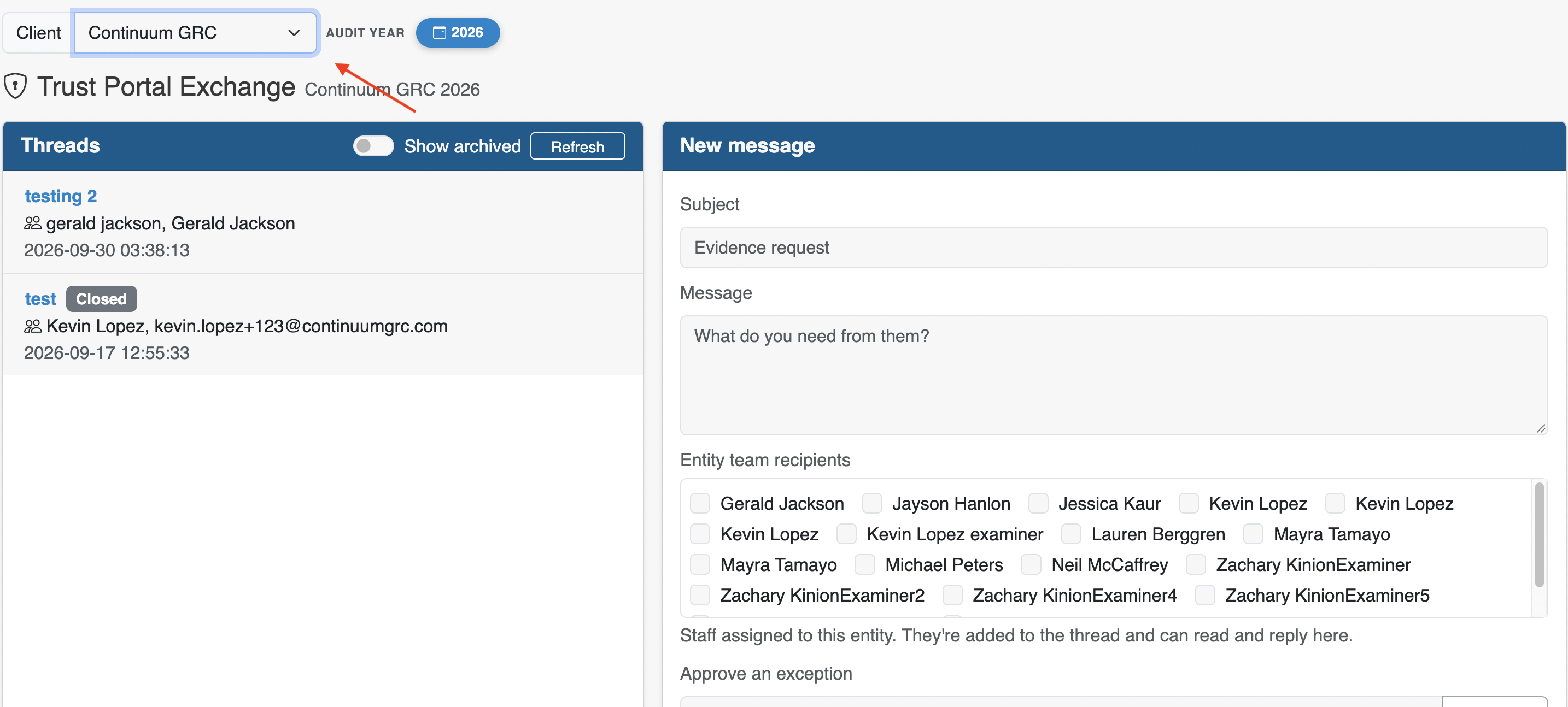
Conversations appear as threads in the left-hand panel. When you select a thread, you will see the sender’s name, a list of users in your Entity that you can add to the thread, and the full message history, including any attachments.
Starting a New Thread
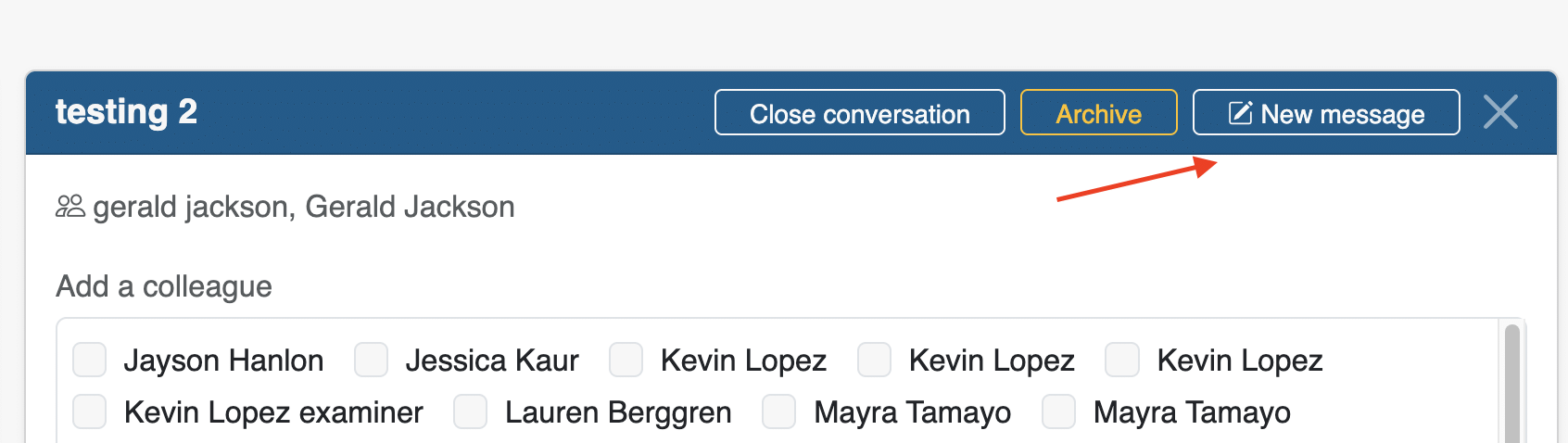
Starting threads is similar to starting an email with a groupd of users. Click New message, include a subject and essage body, include all the users you want to include, and send your message. You can also attach up to 20 files (documents or images only).
Replying to a Thread
Select the thread you want to respond to, type your message in the Reply box, attach any files if needed (documents and images only), and then click Post reply.
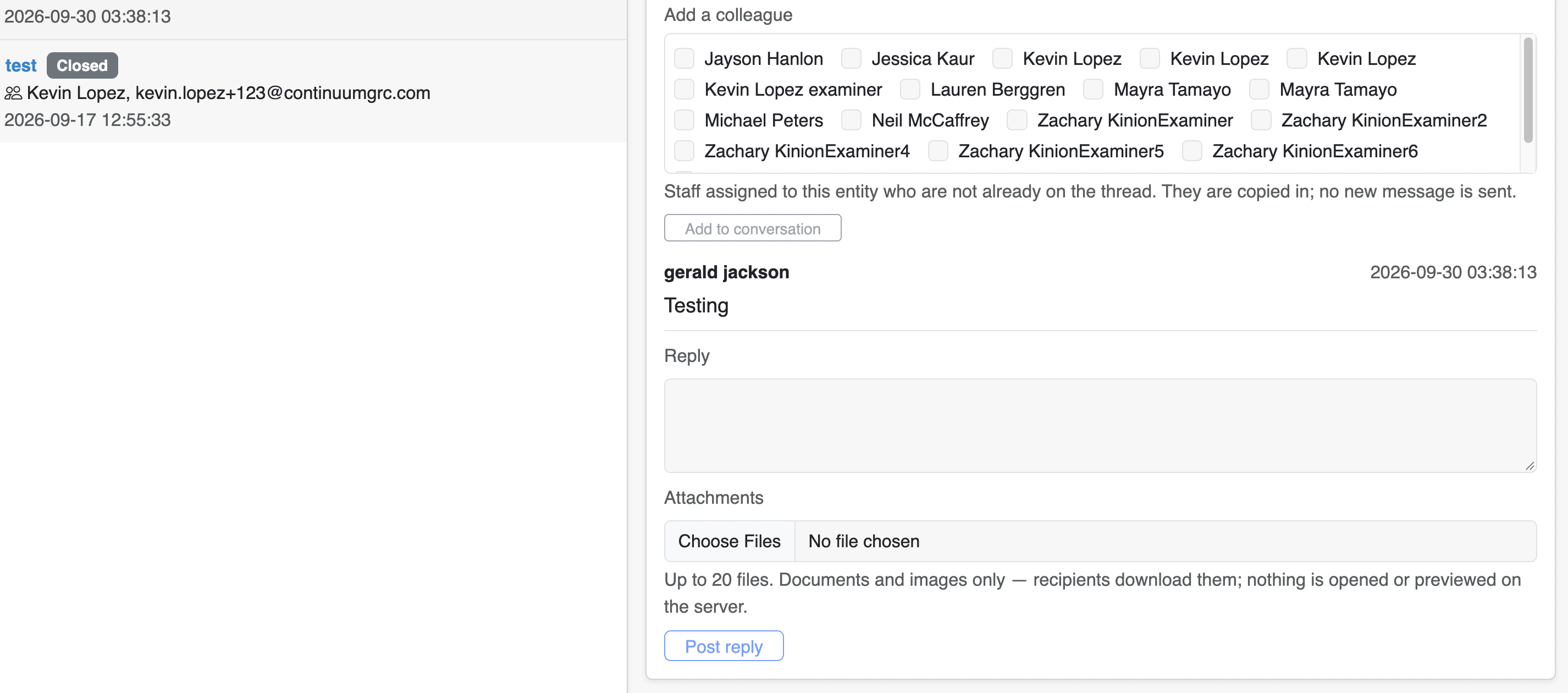
Every selected user joins the thread and can reply.
Note: You can also add email addresses outside your Entity. Because this communication leaves the secure platform, we audit and monitor it so any transfer of sensitive information is documented.
Closing and Archiving Threads
When a conversation has run its course, you have two options:
| Option | Function |
|---|---|
| Archive | Does everything Close conversation does, and also removes the thread from your inbox. The thread is still retained on the server for archival and review purposes. |
| Close conversation | Ends the thread for all participants. Replies are no longer accepted, but the thread stays in your inbox. |