Template Designer for Examiners
Because many files are auto-created to meet compliance requirements, we’ve included ways for users to upload and edit templates to shape those documents. The Template Designer is a repository of controls, with and without templates, and a central interface for interacting with these documents.
The Template Designer is located in the Files dashboard:
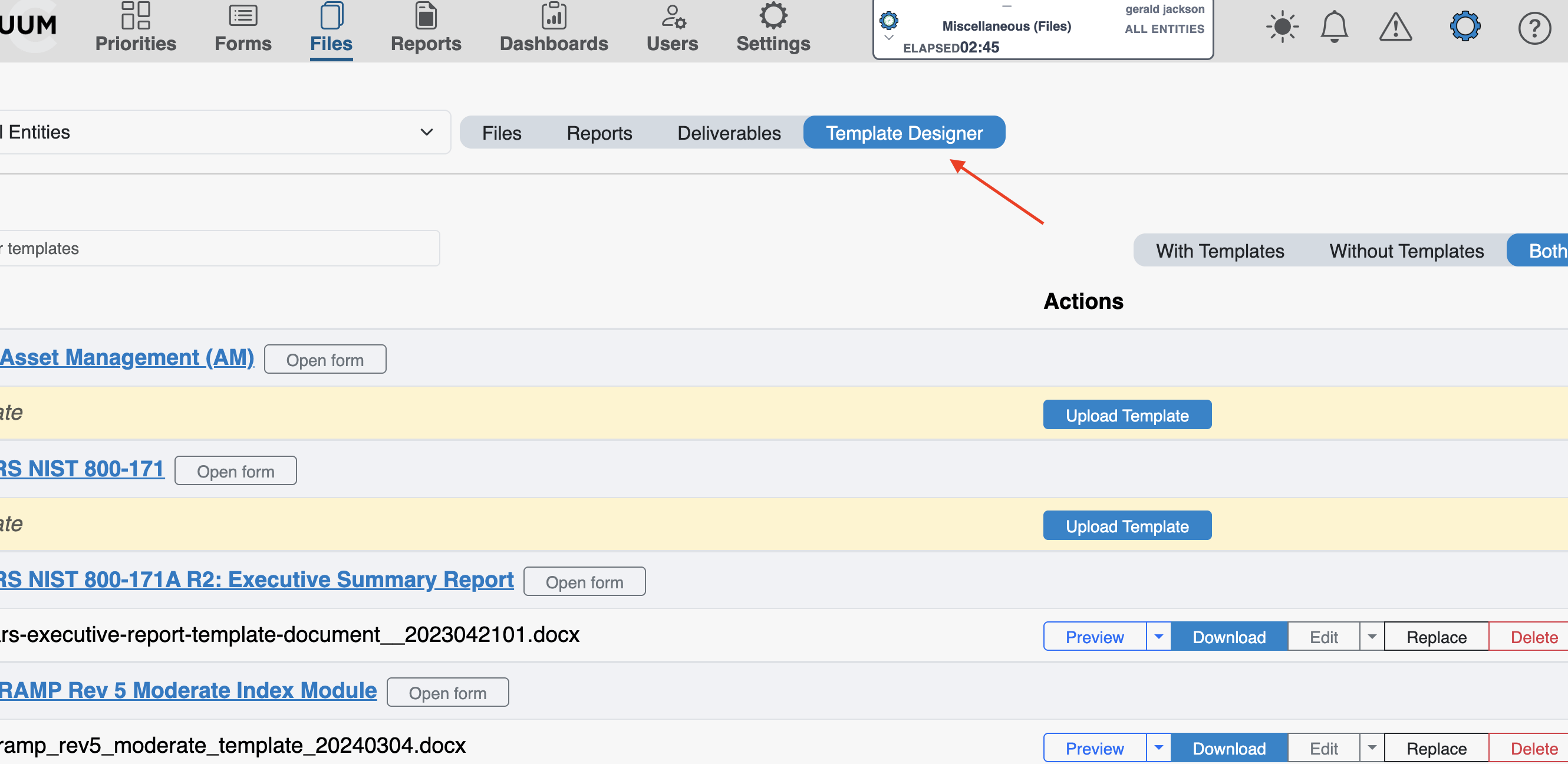
Using the sorting tabs, you can limit the display to forms that have an associated template, do not have one, or both. Here, we are showing both.
For forms without a template, you’ll see the Upload Template button. Before you can work with a template for a control form, you must upload one.
For those forms that have a template in place, you’ll see a few options:
| Template Action | What It Does |
|---|---|
| Preview | Displays a preview of the document built from the associated template. You can preview documents as either HTML or DOCX files. |
| Download | Downloads a copy of the DOCX file. |
| Edit | Edit the document template using a Word-like live editing tool. |
| Replace | Replace the existing template with a new file uploaded from your device |
| Remove | Delete the existing template and leave the form without one. |
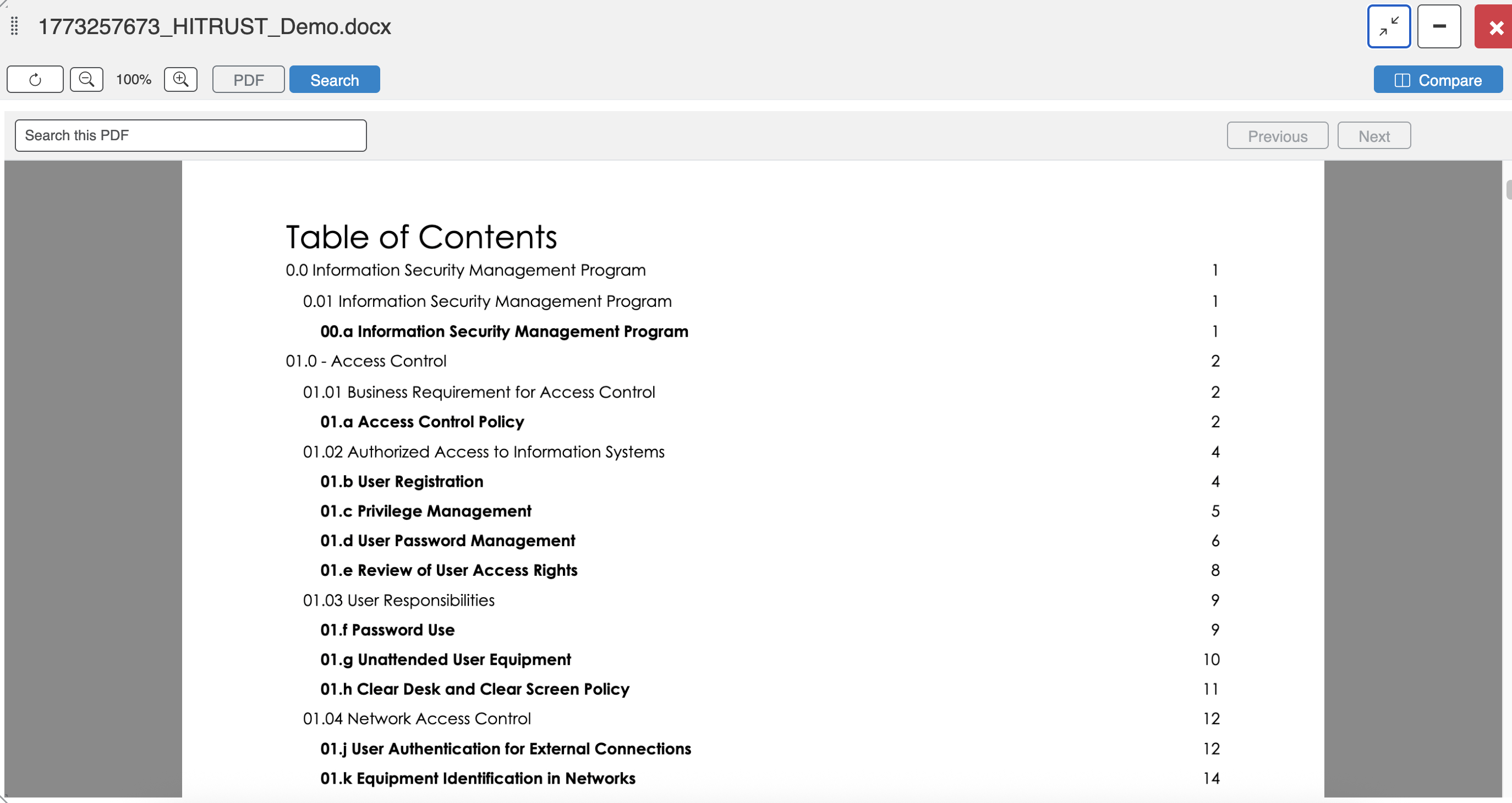
Template Preview
Editing a Template
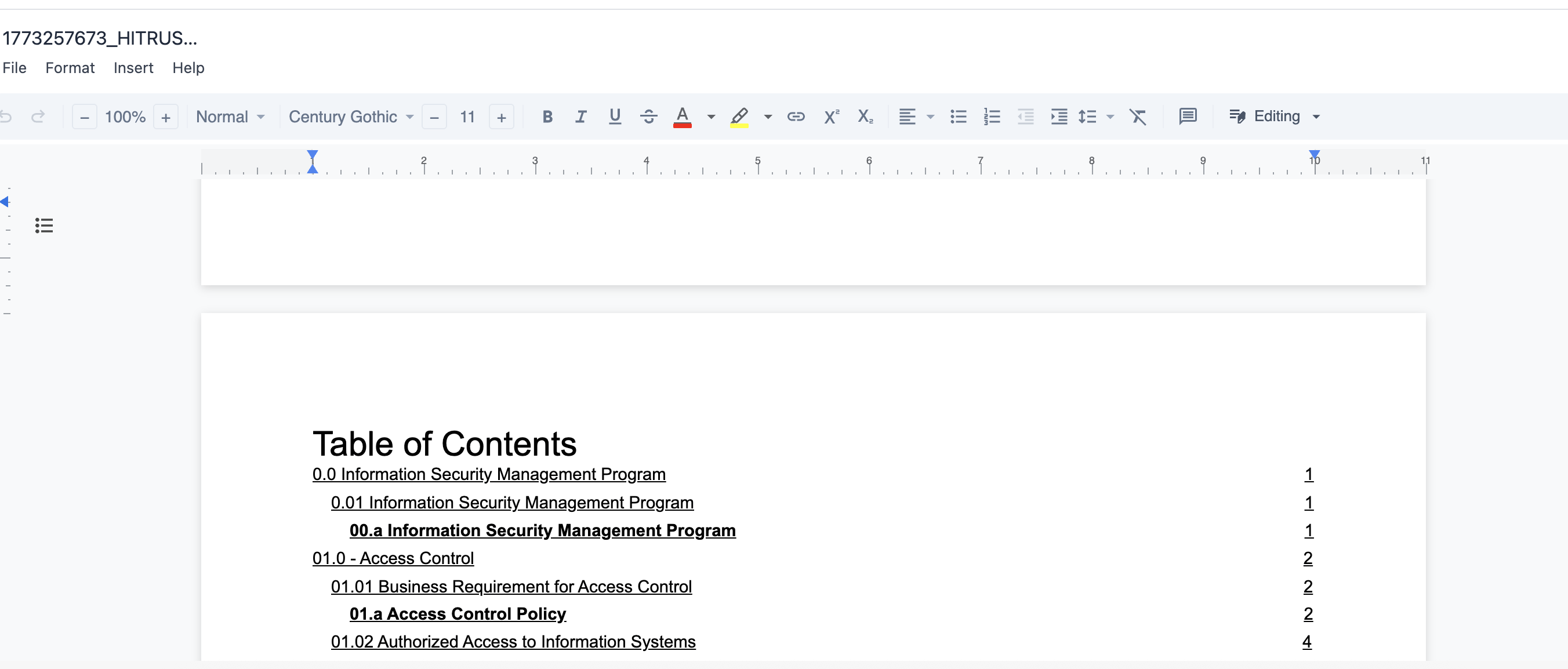
When editing templates, you’ll include variables to insert form field data into the correct spaces of the document:
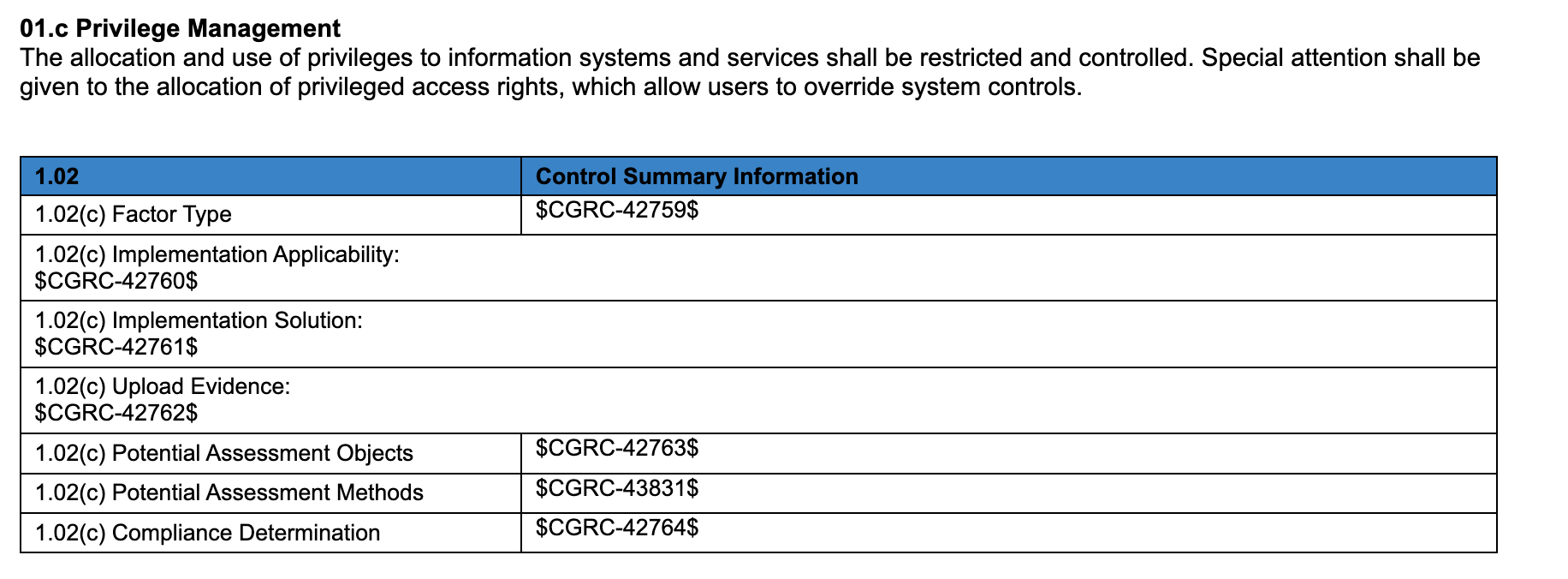
These variables are machine codes associated with each field. You can find the machine code within that field’s display in the form editor, and include it as a variable by appending and prepending a “$” sign around it: