Introduction
ITAM administrators have complete control over their system. When they log into their ITAM instance, they see a substantially different set of tools than their Examiner and Portal User counterparts.
This guide is a comprehensive handbook for Continuum GRC ITAM administrators, written to help them navigate the complexities of their system. It works as a standalone reference document, or alongside the ITAM Administrator’s Bootcamp, a course of how-to videos that walks you through ITAM menus and interfaces.
Throughout this guide, you will work with features and functionality that cover:
- Document and evidence management, form creation and management, and user and security management, with regulatory sources available to populate form fields.
- Dashboards that report on your compliance team’s progress based on risk profiles, completed Action ITAMs, or ongoing form field requirements.
- Controls that manage and secure your ITAM instance by allowing or disallowing users and governing how long users can access the system.
- Integrations that connect productivity and data management platforms to ITAM in support of tickets and task assignments.
- Customization that matches ITAM to your branding and communication identity, or white-labels instances for compliance clients.
By the end of this document, you will better understand your system and where to find specific functionality and features.
Using ITAM: Main Navigation
Almost every feature of the ITAM system is reachable from the primary navigation dashboard. This dashboard differs from the ones used by Examiners and Portal Users, and it concentrates on system management and form building.
The Main Menu
The main menu is available on every screen and dashboard. It is your anchor as you move through the system and the quickest way to jump between areas of ITAM:
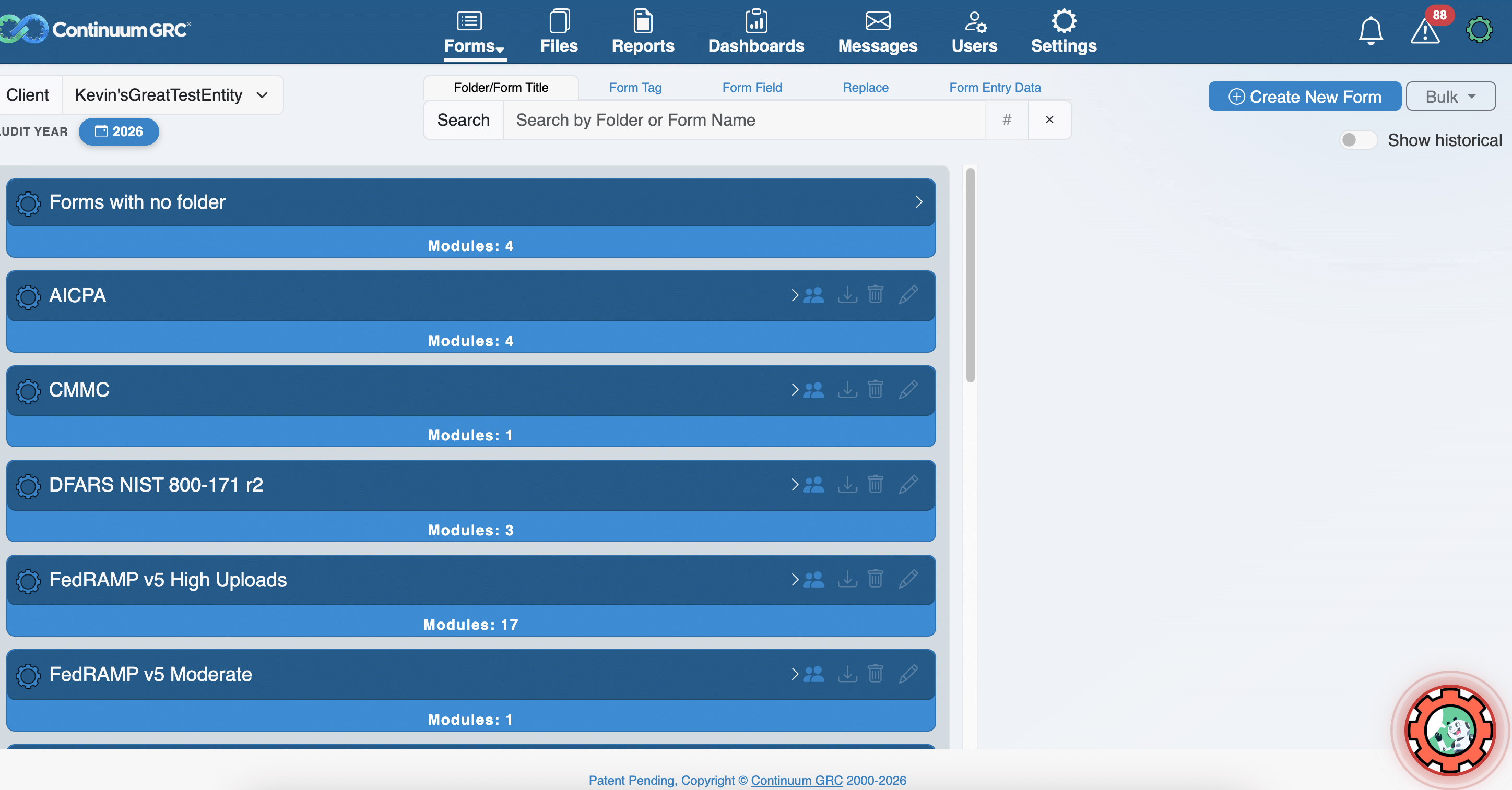
- The Main Navigation Menu: Provides access to the ITAM Admin Portal’s core features. See the Functional Areas section below for more information.
- User Profile and Supplementary Navigation: This button displays the logged-in admin’s name and, when pressed, provides access to the administrator’s user profile and a secondary navigation option for most buttons on the screen.
- Forms Area: The Forms Area includes forms grouped into folders (on the left) and those without folders (on the right).
- Form Creation and Deletion: Buttons that open a Create New or Mass Delete Form, respectively.
The Main Navigation Menu
- Forms: Your primary Forms dashboard, containing your collection of forms and form folders.
- Files: A dashboard of every file you or your users have uploaded while completing form fields.
- Reports: A dashboard of the reports created as your compliance team completes forms and uploads evidence.
- Dashboards: An interactive space where admins and examiners create and pull reports on risk management, team utilization, and other system metrics in real time.
- Messages: Send and recieve messages and files from ITAM users in your Entity without having to involve third-party email providers.
- Users: The dashboard that concentrates admin controls for user management. This is where you manage, create, and remove users and user types.
- Settings: A comprehensive set of properties you use to control how ITAM functions, including additional user management features, security configuration management, and data management.
- Notifications: RSS Alerts tied to threat and risk databases.
- System Alerts: A list of all notifications and alerts raised by ITAM.
This Administrator’s Handbook will cover each of these sections and relevant functionality in detail. Additionally, if you are currently an ITAM Admin, or will be one as your company adopts the platform, make sure that you’re using this handbook alongside our Administrator’s Bootcamp.
Contact the Continuum GRC team if you need course access.
Table of Contents
Under the Main Navigation section, you’ll have access to core parts of your ITAM system. This handbook will be divided along these functions and features:
1. Settings
Provides you with a large selection of settings and integration dashboards to control the look, feel, and functionality of your ITAM system.
- System Settings: An introduction to the Settings Dashboard
- Site-wide System Settings: Configure system-wide settings, email, and Time Machine.
- Security Settings: All settings related to authentication and access to the system and its data.
- Administrator DevOps: All settings and telemetry related to ITAM health and functionality.
- Estimated Time Rules and Time Budgets: A series of dashboards to help administrators track time budgets across forms.
- Timer Session and Administration: A dashboard to help manage time budgets, track sessions across forms, and ensure time is tracked across the system.
2. Form Manager
Forms are the core of any compliance process, and the Form Manager lets you create, edit, and manage the forms your entity uses to gather information and assess and facilitate compliance.
- Form Management: The Form Manager view and the tools reachable directly from it — searching and filtering forms, tagging, enabling or disabling, duplicating, deleting, canceling, setting payment options, changing themes, and organizing forms into folders.
- Entry Manager: View and work with the data users enter on a form—edit, forward, print, export to PDF or CSV, generate documents, update statuses, and delete entries.
- Form Integration: Connecting forms and their data to outside systems through third-party platform integrations, webhooks, and iframe or simple-link embedding.
- Form Logic: The Logic Builder rules that route users dynamically through a form — show/hide fields, skip pages, send notifications, push data externally, and manage approval workflows.
- Color Coding and Global Form Logic: Using color schemes and risk designations to trigger color alerts based on phrases and risk profiles.
- Form Notifications: The four form-specific email types (submission notices, user confirmations, sending data to another website, and scheduled administrative reminders).
- Form Menu: The context-driven menu present in all forms that helps with document generation, status inquiries, and using A.ITAM CyberVisor.
- POA&M Forms: Configuring Plan of Action and Milestones forms with a template and auto-generation logic, and how an administrator interacts with them
3. Form Builder
- Introduction to the Form Builder: The graphical workspace for building a form, including accessing the builder, adding, configuring, moving, duplicating, and deleting fields, saving, and creating multi-page forms.
- Form Fields: The 25 available field types and their intended uses.
- Form Field Properties: The configuration properties applied to fields, from labels, sizes, and choices to validation rules, upload options, and advanced settings.
- Automapping: Syncs data across form fields that share the same template code within an entity, aligning overlapping controls across frameworks so a single set of controls satisfies multiple requirements.
- A.ITAM CyberVisor: Use generative AI to receive guidance and boilerplate form text that you can use to complete forms quickly.
4. Files Manager
Upload, manage, delete, play, and edit the files uploaded to any form you oversee.
- File Manager: The dashboard for viewing and working with files an entity has uploaded as evidence, including the entity selection menu, the file management section, and the file navigation table.
- File Location and Form Fields: How ITAM manages file instances tied to form fields, using the Form Location column and Select button to point to a specific instance and jump to it in a form.
- Filtering, Selecting, and Managing Files: Narrow the file list with the search field, sort by column, and manage file metadata, permissions, and aged files.
- File Types: Reports, Deliverables, and Templates: The three file categories you can toggle between in the file management section.
5. Reports and Dashboards
Lets you view reports created as part of the team’s ITAM usage and the included forms. Also allows you to create report dashboards covering Action ITAMs, completion percentages, and other system metrics.
- Reports Manager: The Report Manager dashboard where you generate evidentiary reports from pre-built templates and completed form data; access the page, generate and regenerate reports, export a report list, and delete reports.
- Dashboards Manager: The interface for creating and viewing interactive data-visualization dashboards that track system health and form status, including the shared report features (print, delete, shareable link, download) and the header summary.
- Report Types: Built-in dashboard types for viewing compliance data—Audit, Artifact Management, Compliance, Executive Overview, Action ITAMs, Risk Scores, Risk Scoreboard, Status Indicators, and others such as Project Health, Entity, Examiner Allocation, and AI Scores.
7. User Management and Administration
Allows you to create, edit, and manage administrative users, examiner users, portal entities, and portal users.
- Creating, Editing, and Managing Users: Work with the three user types to add administrative, examiner, and portal users; set privileges and permissions; edit profiles; enable two-step verification; and suspend, delete, or unblock accounts.
- Creating, Editing, and Managing Entities: Work with portal entities as logical groups of users and forms by adding an entity and its contact details, editing it, and deleting it.
- Administrator Account Settings: View and edit your profile via My Profile. This includes personal info, password changes, resetting multi-factor authentication, digital signature setup, and the My Activity log.
- Sending Feedback Requests: Create, deploy, and track user feedback across your ITAM host.
- Messages: Send and receive messages from users, Examiners, and Administrators on the platform.
8. Integrations
Integrate ITAM with productivity, file storage, and security platforms to ease work across documents and teams.
Ready to build your Roadmap to Risk Reduction?
Call 1-888-896-6207
Call 1-888-896-6207
Start Your Free 14-Day Trial
FedRAMP Authorized GRC Platform Featuring the World's First AI Auditor